Repeating tasks & doc mentions

Abraham
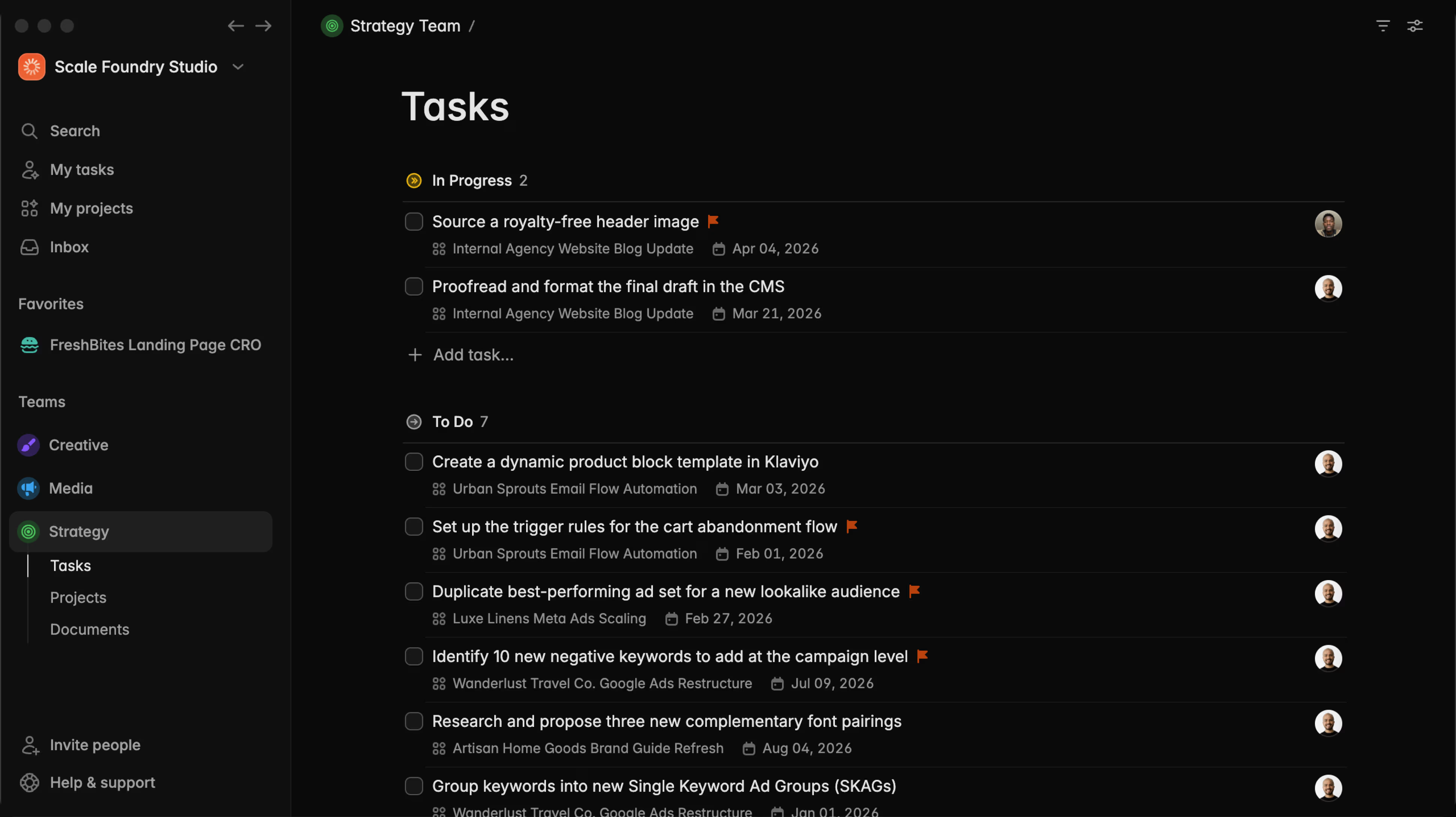
Some tasks just come back around. Weekly check-ins, monthly reports, the thing you always need to do after a sprint wraps up. Until now you had to remember to recreate those yourself, which kind of defeats the purpose of a project management platform.
So we built recurring tasks.
Set any task to repeat
Open a task's menu or the details sidebar and choose Repeat.
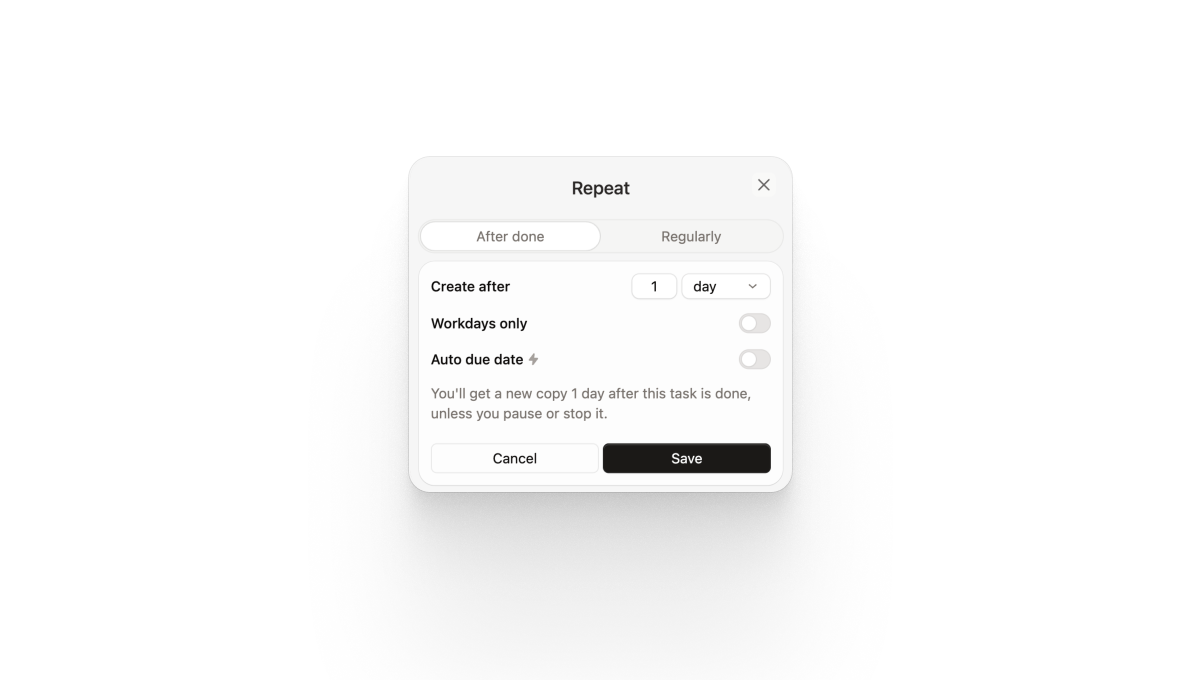
You can pick a regular schedule (every N days, weekly, monthly, yearly) or tell it to repeat after the task is marked as done, which is great for workflows where the next one shouldn't start until the current one is finished.
Each recurrence creates a fresh task
When the schedule fires, Plot clones the original into a brand new task with the same title, description, project, assignees, labels, and priority. If the previous instance was completed, the new one starts as "To do" so your board stays clean.
Auto due dates
Just like task and project templates, repeating tasks can automatically calculate due dates for you. Turn on the "Auto due date" toggle and set whatever offset makes sense for your workflow, like "3 days after creation."
Pause or stop whenever you need to
If you want to skip a few cycles, you can pause the repeat and resume it later without losing your configuration. And if the habit has run its course, you can stop it entirely.
@ mentions for tasks, projects, and docs
One tiny but mighty quality of life update: You can now mention any task, project, or document inside a description or post.
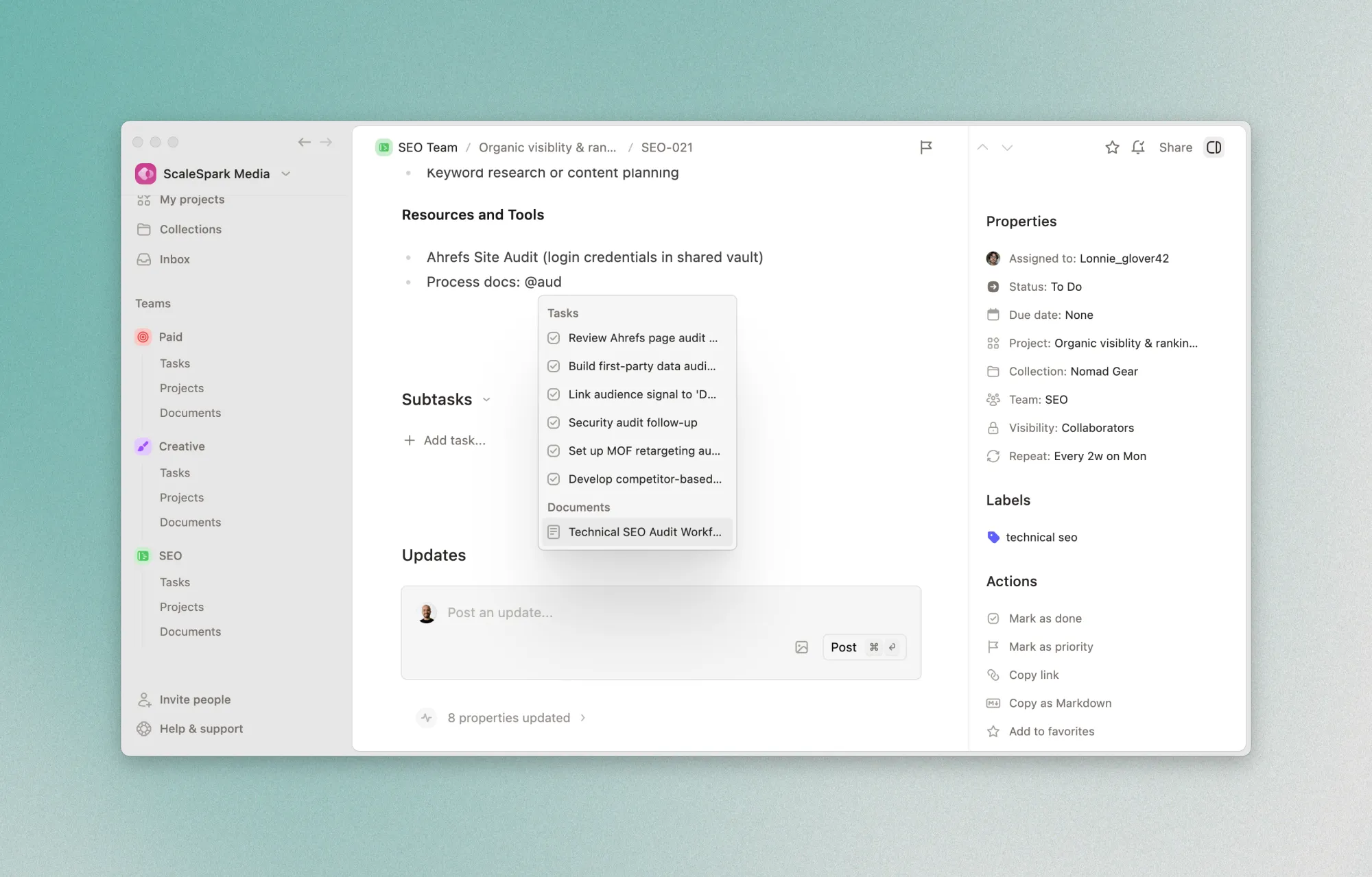
Type @ and start typing to search your workspace, and use the arrow keys + enter to pick what you want to reference from the popover menu. Plot will insert a clickable link so everyone can jump straight to the source.
Try Plot free for 15 days
Plot replaces the bloated all-in-one apps with a focused workspace built for projects, tasks and documents. Impossibly fast, refreshingly simple.