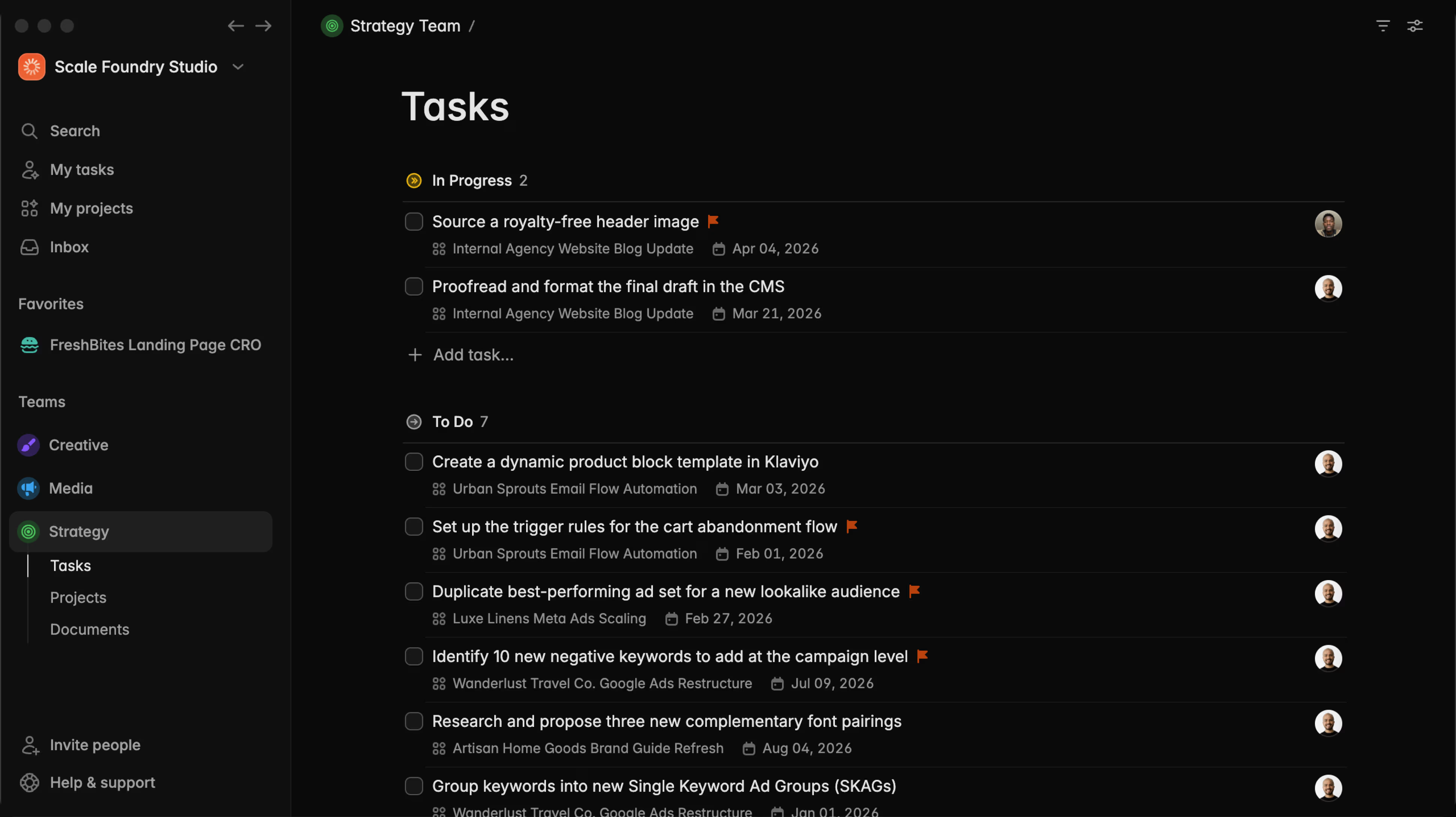
Timeline view

Abraham
We've added timeline view to Plot, and with it a couple of features that make planning projects way less painful: start dates on tasks, and the ability to break your templates down with subtasks.
See your whole project at once with timeline view
Click the timeline icon in the view settings menu and your tasks spread out across a calendar.
Drag them left and right to change when they should start and end.
Without dates, tasks don't clutter the timeline. Collapse the sidebar to see only the tasks you've planned. Expand it back to see everything, dated and undated both.
Hover over the timeline row to preview the slot where a task without dates will be created and click to add it to the timeline.
Drag tasks to reschedule them
Grab a task and drag it horizontally to slide it across the calendar. Drag it longer or shorter to change its duration. Reorder tasks vertically by dragging them up and down your list. All changes save instantly.
Group your timeline just like your list
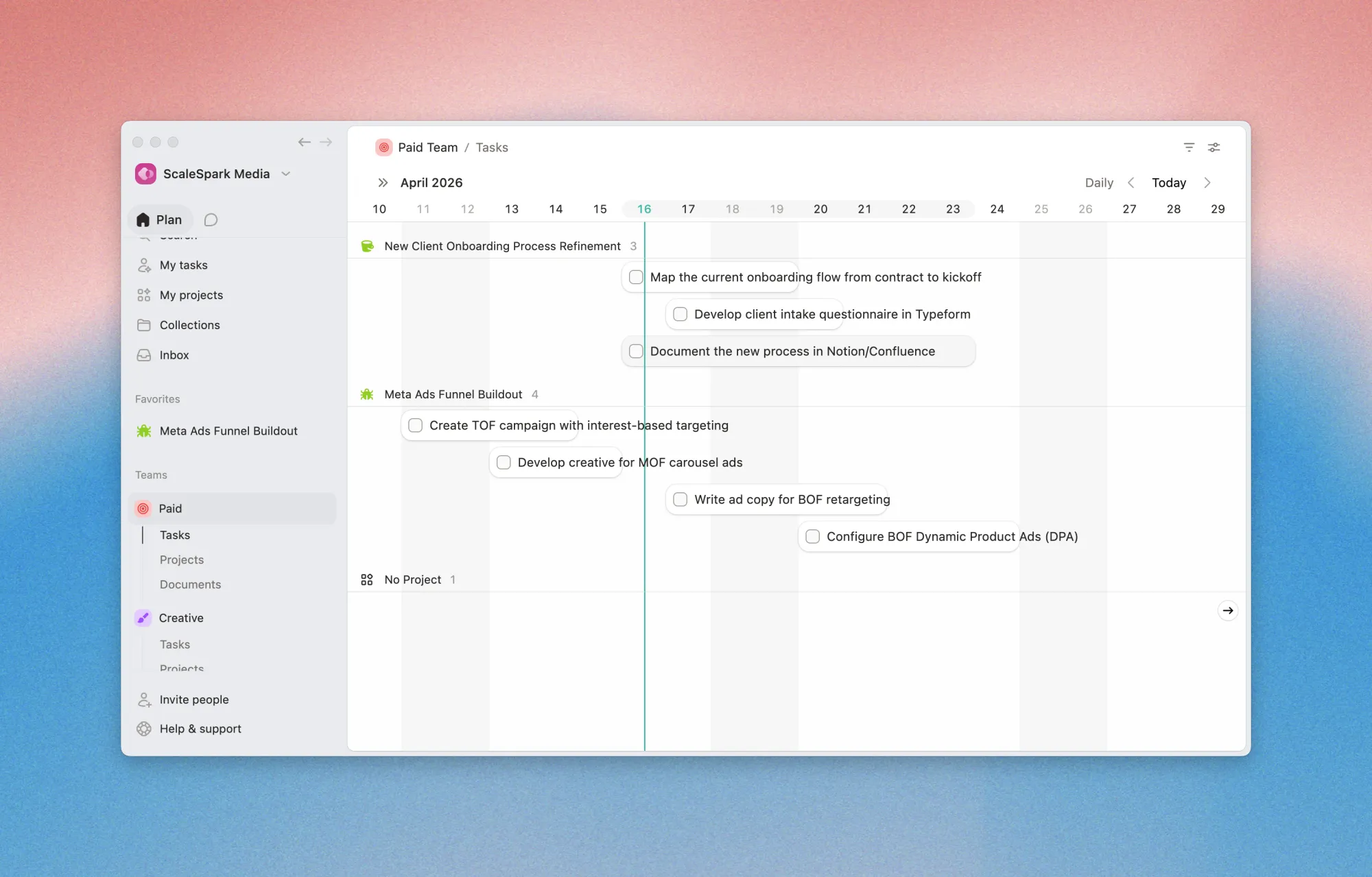
The timeline respects whatever grouping you've set up. Group by assignee, by label, by status, or not at all.
Set start dates on your tasks
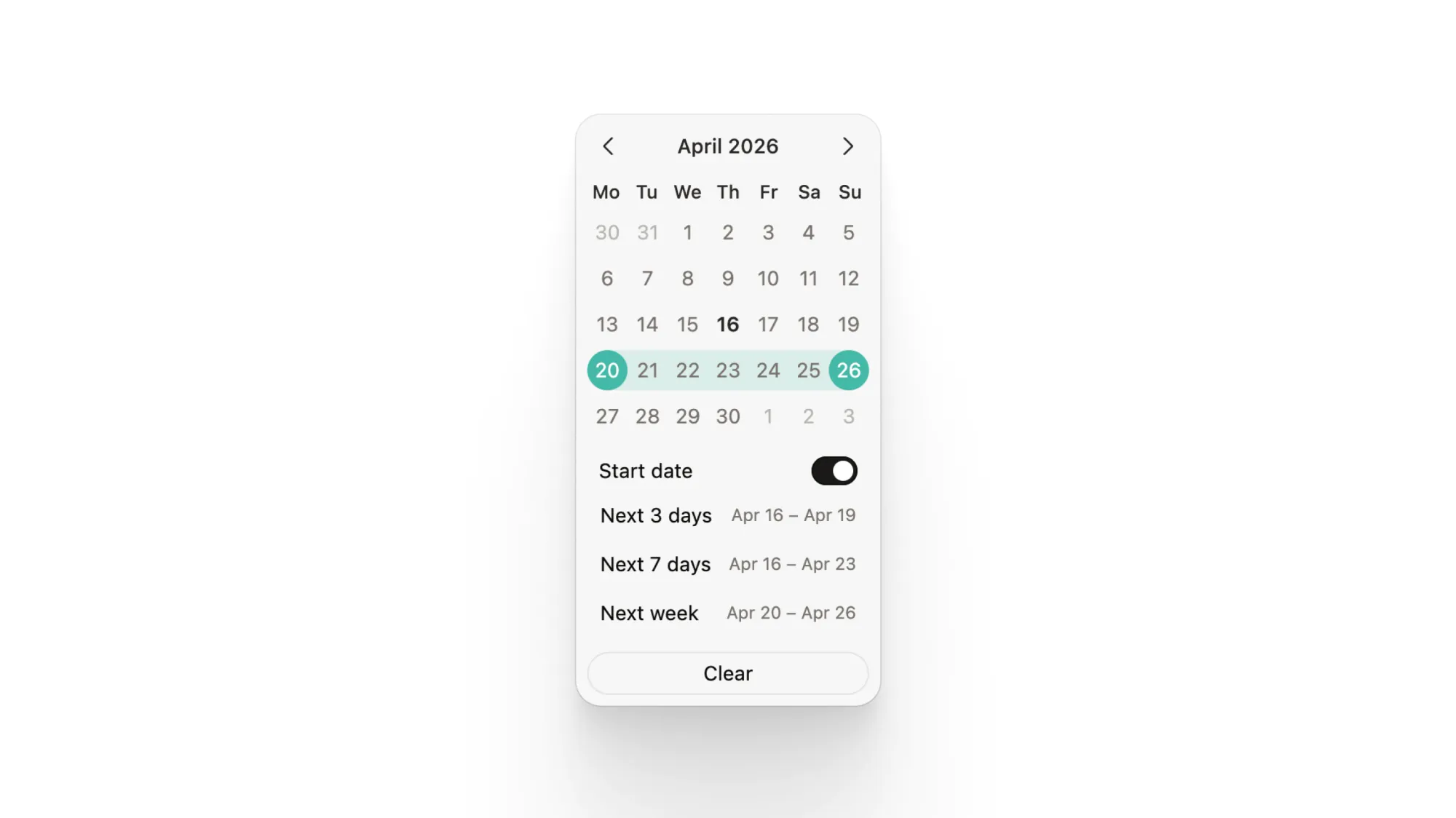
Open the date picker on any task and flip the switch to add a start date. Tasks can now span from a specific start to a specific end, giving you the full picture of when work should happen.
The timeline uses start and end dates together to show the task's actual span. If you only have a due date, the task shows as a single point on that day.
Build subtasks into your templates
Both project and task templates now support subtasks.
Set up the full breakdown once, and every task created from that template gets the same nested structure ready to go.
Useful for recurring patterns like sprint planning, client onboarding, or any work that breaks the same way every time.
Navigation is now 2x faster and way smoother
We rebuilt how views restore and mount, cutting out the flash of incorrect state you'd see when switching between projects. Navigation is now instantaneous on most devices.
Try Plot free for 15 days
Plot replaces the bloated all-in-one apps with a focused workspace built for projects, tasks and documents. Impossibly fast, refreshingly simple.