Collections are shared folders that group related projects across your workspace.
They let you:
See all related projects in one place, even if they belong to different teams.
Check overall progress and status at a glance, then open individual projects when needed.
Keep a single shared document with key information that everyone on the team can reference.
0:00
/0:07
Collections are accessible from the "Collections" page, but also on your team's projects table, and on individual tasks.
Some interesting use cases:
Agencies and service businesses
Group projects by client. Store client details, onboarding info, links, and notes in one place while tracking delivery across all related projects.
Product and ecommerce teams
Use a collection for a company-wide goal, such as an OKR or a major launch. Plan the work and track execution across all projects tied to that goal.
Events and campaign teams
Group everything needed to deliver an event or campaign, such as venue planning, marketing, logistics, and follow-up work. Keep budgets, vendor contacts, and timelines in one central document while tracking progress toward launch day.
💡
Important: Collections are shared at the workspace level, and all members of your team get access to the folder and its overview document, but each member can only see the projects they have access to.
New properties panel for tasks and projects
The new properties panel reduce the cognitive load of the properties, and helps you keep the focus on your work, even with the panel open.
New navigation for projects
Quickly change between the project overview and its tasks with a toggle that stays visible under the page title.
"Created at" property for tasks
You can now display when a task was created and on hover, see who created it. This is useful to keep track of stale tasks, and makes it easier to know who added what to the plate.
0:00
/0:06
You can turn this on and off on each view from your view settings.
Improvements and bug fixes
See the full task ID before its name on mixed team views (like my tasks, or projects). Click the ID to move the task to another team or copy the ID to clipboard.
Adds remove from favorites action to favorited elements in sidebar
Redesign the top bar actions for projects views and task details view, removing the dots menu and moving the position of the favorite action to achieve a more minimal UI
Added the new page title design to all pages in Plot
Fixed login issues when switching accounts or after logout
This is the largest release we've had in Plot for a while: A brand new website, a new task list design, more controls to make your views more minimal, and a new founding team plan with a lot of perks (including a massive discount and direct access to me for support).
There's a lot of ground to cover today so let's dive right in.
Task List V2
Ever since I started Plot, my main goal has been to reduce the overwhelm while still being able to keep track of the stuff to be done.
The problem is that if you go too far in removing information, then the list is not really useful for team work. But if you add too much, it gets crowded very fast and makes you hate your life.
And so, the first version of the task list got us close to that sweet spot.
But had a few flaws: it was too dense. The controls were too hidden. And when you had a long list of tasks (like we all do, after a while) it became hard to digest. It felt a little too much like a spreadsheet.
So I went back to the drawing board.
How can I make the list feel like "just a list", but make it more calm? More manageable? Easier to understand at a glance?
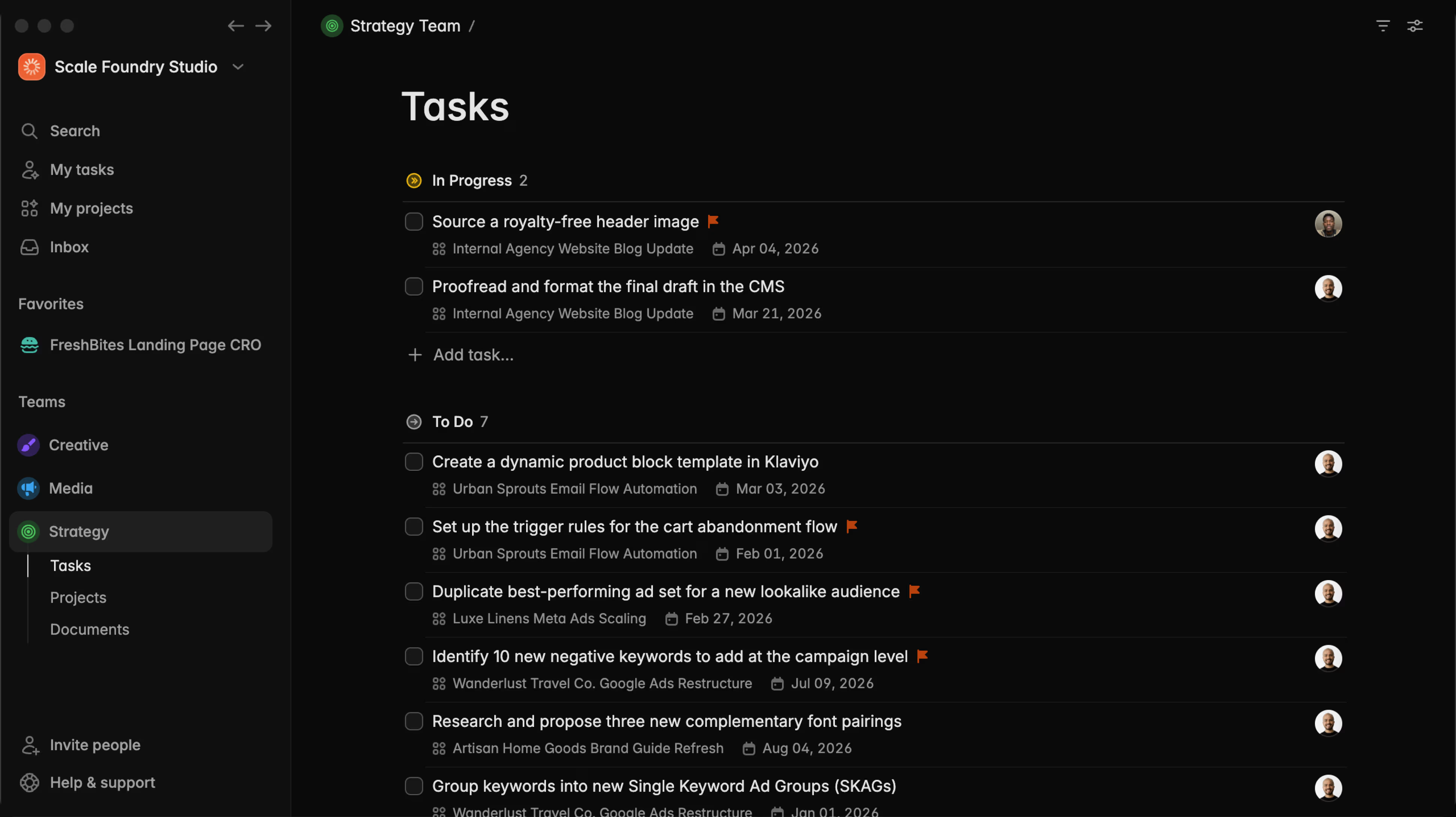
The result is Tasks List v2:
Here's a designerd breakdown if you care about that sort of thing:
And the tasks capture experience is still unmatched. It feels like you're just jotting down a regular list in your favorite notes app (cough... Apple Notes... cough.)
0:00
/0:17
It stays nice, clean and manageable while you're planning, and only adds buttons and controls when you actually need them. You can try it right now in your Plot account.
Property visibility controls
After we had this new beautiful list, I wanted to go farther. I wanted to make it so that if some property in a task was not relevant for you specifically, yes you who are reading this, you could hide it altogether.
So let's say your coworker Mark really likes adding tags to all tasks to keep things tidy.
But tags only give you anxiety and visual clutter. Well... now you can make the tags invisible only for you, without messing with Marks workflow over there.
Same with all the other controls and information we show on screen. This way, you can adapt your view and task controls to only show things that are relevant to you. You can manage the noise and reduce the anxiety on your to-do list.
0:00
/0:10
This release, by the way, sets the stage for our top secret (lol) focus mode, coming soon.
New onboarding experience
Before we were onboarding you with a lot of tasks. The idea was to give you a feel of all the product could do but honestly it was a lot. So, true to my minimalism pursuit, we trimmed it down to the essentials.
This includes a new welcome video (that I regrettably recorded on the old UI, updates to follow...) and guidance on creating projects and teams... and that's it!
A more minimalistic UI
We've removed the labels on the top nav buttons (Filters and View Settings) and moved the main page title down in Tasks to make the UI a lot cleaner and less overwhelming. Work will continue to remove anything that's not needed so stay tuned.
New Founding Team special plan
As we gear up to full public release with all the bells and whistles, we are introducing a new Founding Team plan. If you decide to come aboard, you will have direct access to me, Plot's founder, via Slack.
You can DM me for direct support at any time (bet you can't do that with Asana's founder), get early access to new features, and help shape the future of Plot with priority feature requests.
You have a great idea on a feature that you desperately want? Ask away. To me. Directly.
Oh and I will also help you get set up with 1 on 1 onboarding, and give you a nice 40% off for your team's first year to help transition from your current platform.
A lot changed in Plot during November. So, if you were on a Plot trial before, we've reset all trials so as soon as you log in again, you will have an extra 15 days to try the new version 🔥
Brand new website
And finally, to celebrate it all, we have a sparking new website.
My background is in web design, so I put a lot of love into this new version of the site. I also refreshed our branding and I'm very happy with how it all came together. Even added cool fades, noise, a retro style font for our headlines and a lot of trendy feature boxes. The designer in me is proud.
The site is live right now!
Bug fixes and improvements
In our previous release we introduced real time collaboration in the text editor. In turn, that introduced some latency in opening up existing documents. In this release we fixed the issue and documents are back to being instant.
Loading large views (1000s of tasks) could make render slow in some cases. We've rearchitected our rendering strategy and now it's buttery smooth, regardless of how many tasks you are viewing.
We've fixed a bug on keyboard navigation that was preventing it to activate reliably, requiring several down arrow clicks before kicking in. Now it works as expected.
Fixed a bug when using the command menu (⌘+k) where changing assignees from "My tasks" could throw an error.
Fixed a bug that prevented "Trial expired" status to update correctly in some cases.
Fixed small visual regression on Task filters (styling mostly)
Fixed enter key causing duplicate entries in some cases in tasks.
Fixed duplicate log entries when updating project statuses.
Fixed board cards not focusing correctly in some cases when using the add task button.
This past couple of weeks we focused on 2 things: The editor, and bug fixes and performance improvements.
And so, today's release brings new exciting capabilities to Plot's text editor.
Realtime sync
Our text editor was the only piece of the app that didn't receive realtime updates, until now. This sets the groundwork for collaborative editing (with people and with AI 👀)
Now, as soon as you start typing in any Document, Task or Project, your updates are instantly synced for everyone in your workspace.
New editor blocks
This release adds 2 new components: Callout and Toggle.
To use them, type "/" in your editor to see all the available blocks.
Improvements & bug fixes
We've rebuilt the documents layout to improve the experience of showing+hiding the documents list. Now, you get a clear button to collapse the documents panel.
Improved markdown pasting - Plot now correctly renders pasted markdown into fully edited text
Fixes issue with group visibility controls in task view settings, now correctly showing and hiding inactive groups (backlog, cancelled), and empty groups. As a result, the “View settings → show empty groups” toggle actually drives the board/list, hidden groups don’t pop back unexpectedly, and the default/not-started lane behaves predictably.
Fixed issue that was preventing new cards in board view from correctly receiving focus for fast inserts
Improved performance on inserting new tasks in list and board view
Fixes header not expanding properly in large screens when document panel is open
Fixes comments composer not detecting empty reliably (tip: you can post your comment with cmd + enter now!)
Fix issues with activity logs creating excessive logs and displaying duplicates in some cases
Added a new image resizer to the editor that is both faster and more reliable than the previous version
Fixed a small inconsistency in project archive behavior
Meet our new, ultra-fast, reusable templates for projects that instantly create all tasks, assignees and even deadlines for you, using our new automated dates feature.
Add your brief and tasks like a normal project
From your team's templates navigate to the new "Projects" tab, and create a new template.
You'll have the full document editor to write your brief or PRD, and the dedicated task list at the bottom.
0:00
/0:06
Everything you add to the "Tasks" section is a template on its own. You can go in and fill in all the details, set the properties (as usual) and hash out the entire project execution.
Whenever you start a new project from a template, Plot will generate all the tasks needed to finish it.
Automate due date assignment and deadlines with our new auto-dates feature
The most annoying part of using project templates is having to manually configure the due dates and do mental math for each individual task. Every. Single. Time.
Well, with Plot you won't have to do that any more.
From your tasks list click the calendar icon. In the new "Auto" tab you'll be able to pick a date relative to when you create project or its start/due dates.
💡
To enable auto due dates relative to project start and end dates, you need to add start and end dates to the project template (which can also be automatic ⚡ )
Then, when you create the new project, the due date for the task will be auto-calculated for you.
Create your projects with one click
From the "projects" section of your team, you'll see a new button with a downward facing arrow. On that button you will see a dropdown menu with all your templates.
Plot will create a new project with your predefined settings, brief and tasks when you select any of them.
Improvements and bug fixes:
Fixed a regression in our main text input that caused text truncation issues, as well as the wrong starting position to the input when the editor was unfocused.
Fixed a small lag issue in our text editor when rendering the drag handle.
Fixed a visual regression in our icon picker, previously rendering larger than the regular inputs in some cases.
Today we're kicking off Plot's changelog, and this is a big one. This release includes our brand new task templates, natural language dates in tasks, and a host of improvements and bug fixes.
Create new tasks from templates with one click
0:00
/0:10
Now you can create templates for your tasks in Plot and then have quick access to them during creation with a new slash command menu.
To create a new template, use your team's menu
The template editor has access to all the properties from a regular task. You can edit the title and description (of course) but also add a default due date, assignee, labels and more.
Go to the sidebar, hover over the team's name and in the ··· menu, go to Templates to get started.
0:00
/0:06
Access your team's templates in the ··· menu in the sidebar
While typing a new task, type / to access all your templates
Use the arrow keys or continue typing to find the template you want, and press enter. With one click all the data will be populated in your task.
💡
Important: Some fields won't be populated when inserting a task using the slash command. That is because in a task list or board, the contents of a new task are inherited automatically from the group they belong to. E.g. if a template is assigned by default to Paul but you're in "My tasks0" adding from a template assigned to Paul would make the task disappear.
This is (as far as we can tell) the fastest task creation experience in any project management app.
Set the due date on tasks using natural language
0:00
/0:06
You can now type any date using natural language while creating a task by using an @ sign. It works with any format of date for example: @today , @in 10 days or @Sept 21
Once you press enter or click outside the task, the tag will be removed and the due date will be updated.
Plot is now 2x faster
In this release we added a (big) optimization to make navigating between pages even faster than before. It was pretty fast already but now it's rapidly approaching instant, as it should be.
Improvements and bug fixes
Fixed a bug that caused priority flags to disappear unexpectedly in tasks
Fixed a bug that caused some drag and drop operations to fail in board view
Rearchitected our main text input from the ground up to support the new input features. This change makes task creation a lot smoother.
Fixed issues with avatar uploads and profile updates
Try Plot free for 15 days
Plot replaces the bloated all-in-one apps with a focused workspace built for projects, tasks and documents. Impossibly fast, refreshingly simple.