Task dependencies & subtasks
Today we're releasing two big features to support complex workflows: subtasks and dependencies. Plus: a major UI redesign (especially nice in our desktop app.)
Keep track of blockers with "Dependencies"
Open any task's details sidebar and you'll find a new "Depends on" section. Add a dependency to say "this task can't be done until that one is finished."
The blocked task gets a small badge in list and board view that you can hover to see what the blockers are, and their status.

Any task in your workspace can be a blocker of a task, including tasks from other teams.
Avoid accidental completion of blocked tasks
If someone in the team tries to complete a task with pending dependencies, Plot will ask for confirmation.

You get a dialog with three options:
- Remove the blockers and complete: unlink any pending dependency to unblock the task and mark it as complete
- Ignore the blockers and complete anyway: leave the dependencies in place, but complete the task.
- Mark the task and all its blockers as complete in one go
Get notified when you're unblocked
Whenever your task becomes unblocked (the moment all blocking tasks are marked as done), you get a notification. No more checking back manually. Plot tells you when your task is ready to work on.
Break large tasks into subtasks
Some tasks are not large enough to be a full project, but require some slicing and dicing to get done right. Now, you can track it all in one place with subtasks.

Hit "Add subtask" in the task detail view and start breaking work into smaller, checkable pieces. Each subtask is a full task with its own status, assignee, and labels, just nested inside a parent.
Subtasks in list view
Parent tasks get a collapsible chevron in list view. Expand it to see all the subtasks indented underneath, collapse it to keep things clean. A progress count (like "2/5") shows where things stand.
Drag and drop
Reorder subtasks by dragging them within the list. Drag a regular task onto another task to turn it into a subtask. Drag a subtask back out to make it standalone again. You can also press Tab to indent a task under the one above it, and Shift+Tab to outdent.
Convert from the menu
Use "Make subtask of…" from the task menu, from the sidebar or from the command menu (cmd+k) to pick a parent. If the parent lives on a different team or project, Plot asks you to confirm the change before moving anything.
Repeating tasks clone their subtasks
If you've set up a recurring task with subtasks, each new recurrence gets a fresh copy of the full breakdown with statuses reset, ready to go again.
UI Redesign
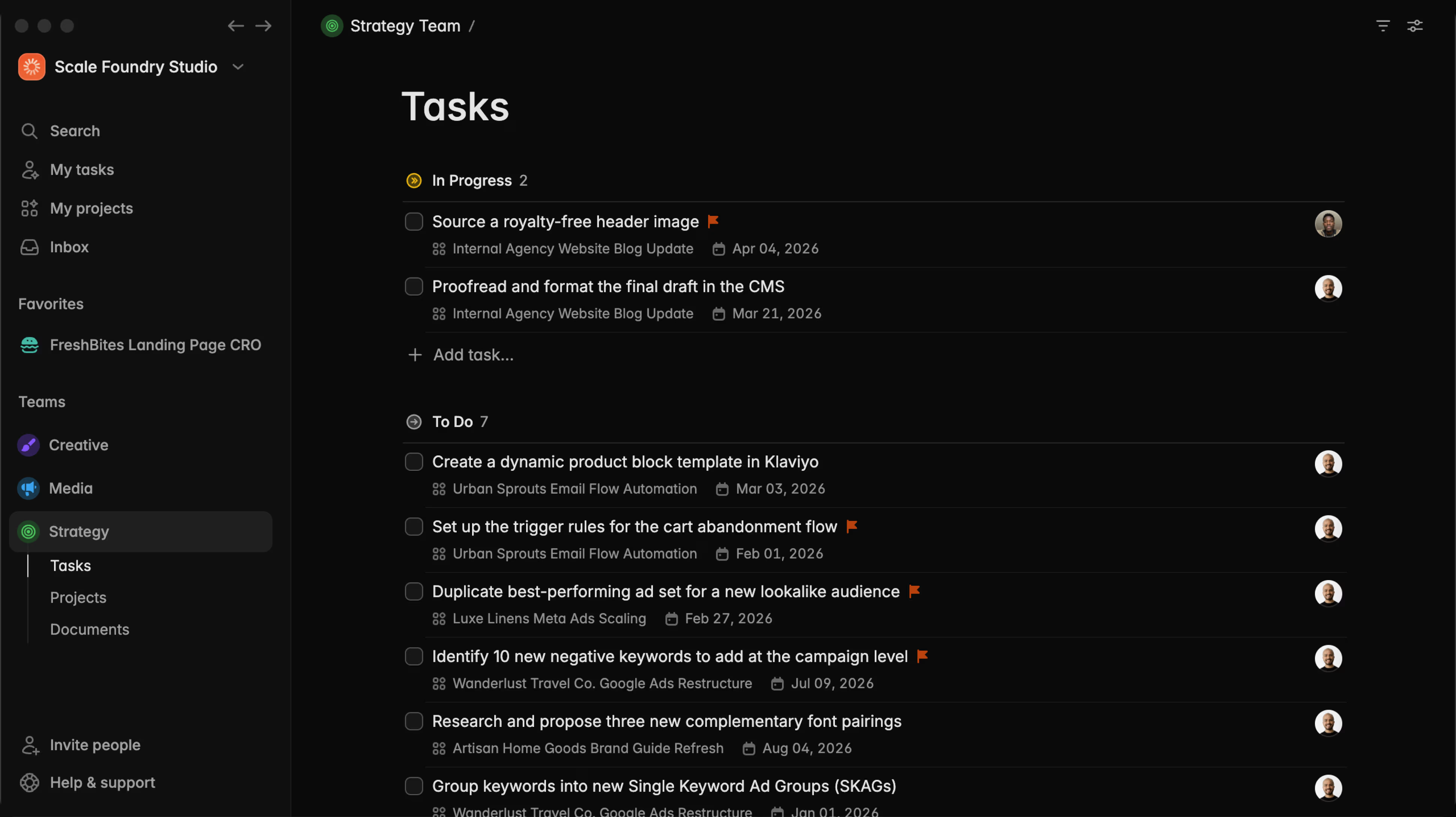
The app's UI got a glow up in this release as well. You can see how it looks across all previews. It looks especially good in our desktop app. You can download it here.