
Guests
Give external collaborators limited access and manage their guest seats.
A free guest seat gives an external collaborator access without making them a full workspace member. The workspace can have unlimited guest seats.
Guests can access one area, or specific projects, tasks, and documents shared with them. They cannot browse other workspace work.
Invite a guest
Share an area, project, task, or document with the person's email address. Plot uses a guest seat when the email domain is not an approved workspace domain.
Choose the person's area or item role during the invitation. That role controls what the guest can do inside the shared work.
Manage guest access
- Open Settings.
- Select People under Workspace.
- Open Guests.
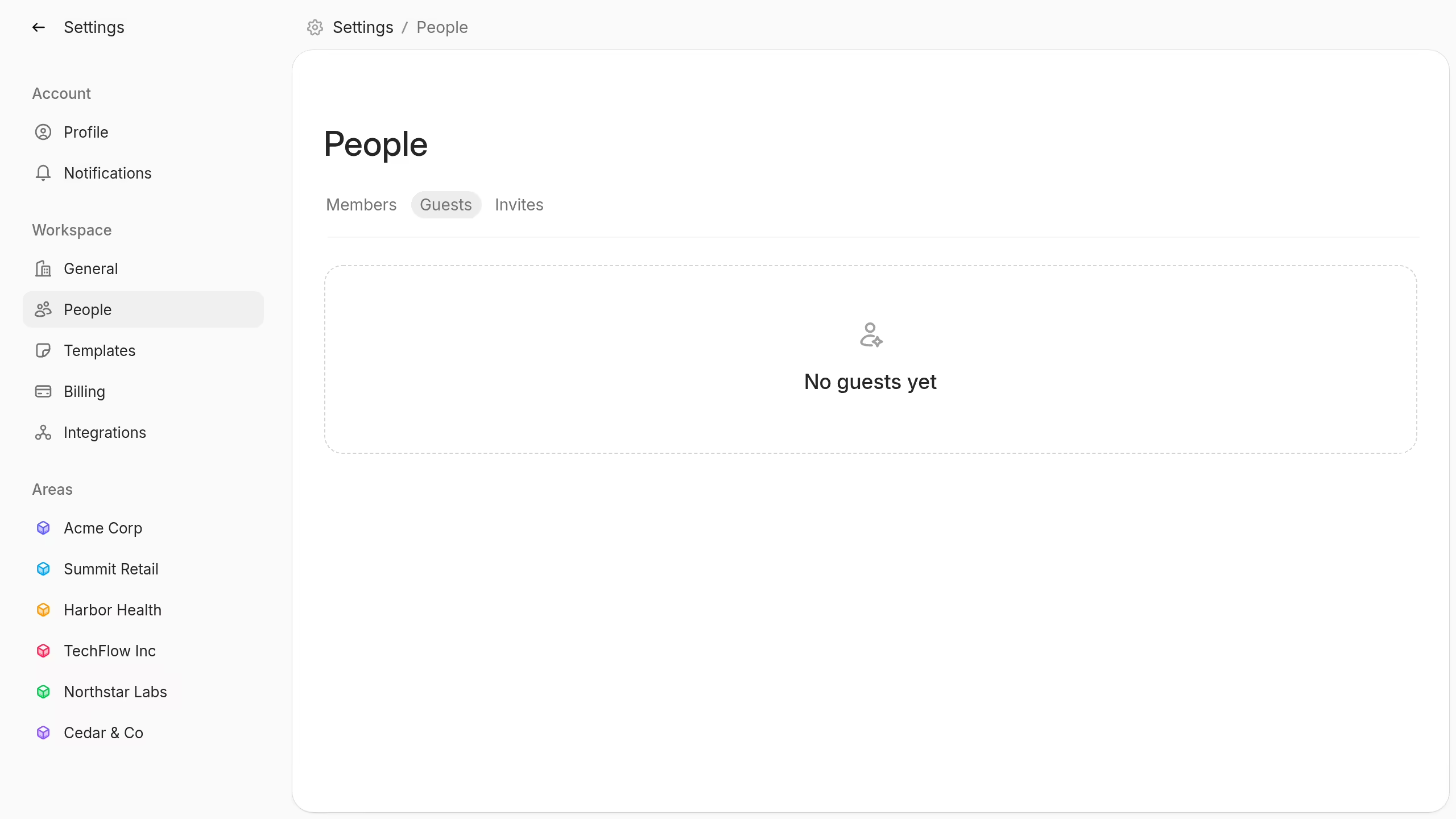
The guest list shows each person's accessible areas, projects, and tasks. Workspace owners and admins can remove a guest or upgrade them to a member.
Use the Invites tab to review pending invitations. You can resend, revoke, or restore an invitation.
Understand guest limits
Guests cannot invite workspace users or manage workspace settings. They cannot open tasks or documents with Hidden visibility.
Use Task and document visibility to check the audience before you share content with a guest.