
Relative dates
Automate a complete project schedule from creation through delivery.
Relative dates make a project template act like a reusable schedule. You define the timing once, and Plot calculates every date when someone creates a project.
This feature removes the manual date setup from repeat client work. A launch plan can adapt to this week's kickoff or a kickoff six months from now.
Build the project window
- Open a project template.
- Under Properties, select Start date.
- Select Auto.
- Enter an amount.
- Choose days, weeks, months, or years before or after project creation.
- Select Save.
- Repeat these steps for Due date.
Choose Fixed only when every project needs the same calendar date. Choose Auto for a process that must keep the same duration whenever it starts.
For example, set the start date to one day after creation. Then set the due date to six weeks after creation.
Schedule each task
Area project templates can also anchor each task to the project schedule.
- Add a task to the project template.
- Select the task's date control.
- Select Auto.
- Enter the offset and its unit.
- Choose the schedule event that controls the date.
- Select Save.
A task due date can use one of three schedule events:
- Project is created schedules setup work from the creation date.
- Project start date schedules delivery work from the planned start.
- Project due date schedules reviews and handoff work back from delivery.
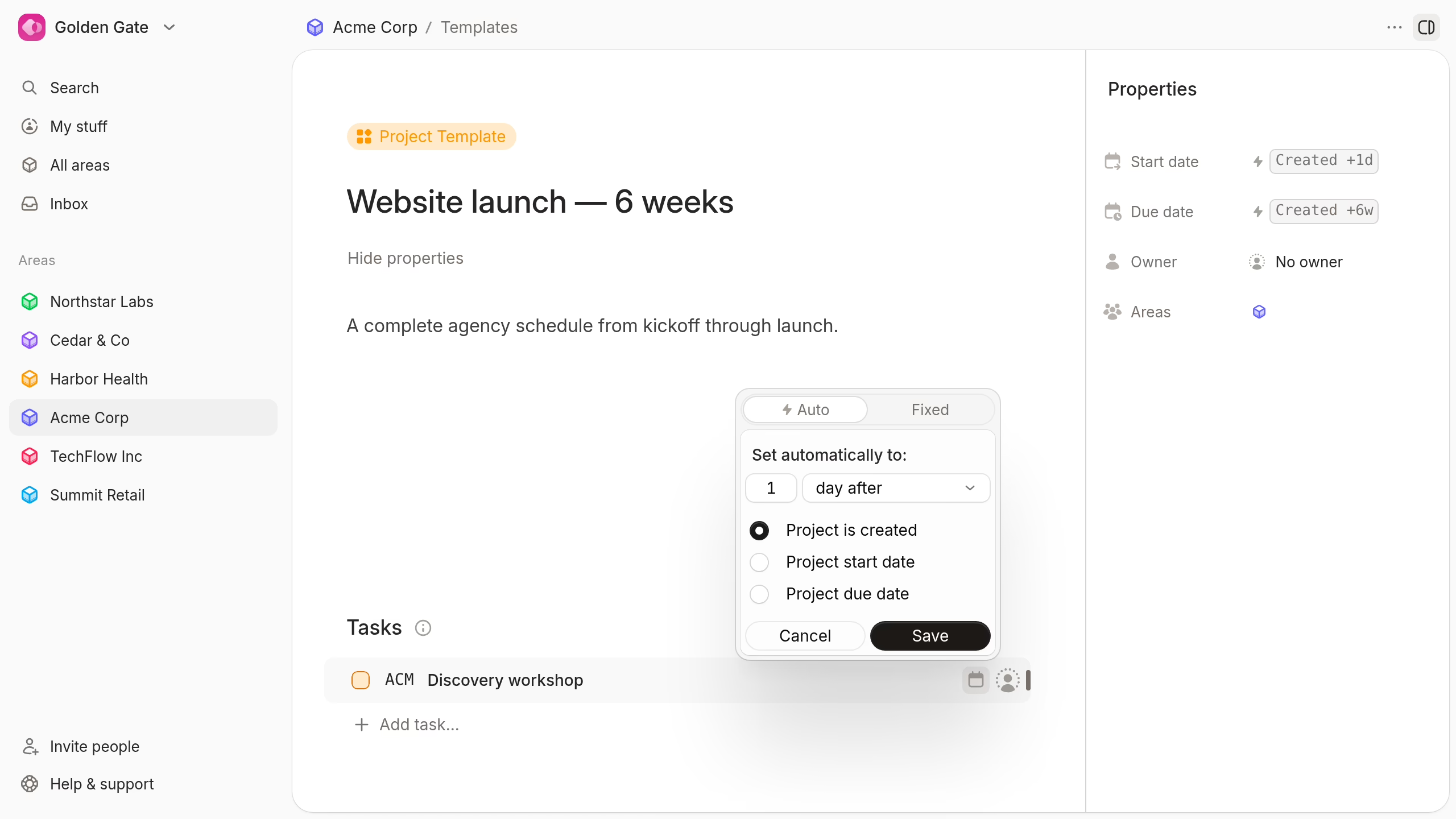
Project start and due options require the matching project date. If you remove that project date, Plot changes affected task anchors to project creation.
Workspace project templates support automatic project dates. Their task date offsets use project creation as the schedule event.
Example: automate a six-week website launch
This agency schedule uses five relative rules:
- Project start: one day after project creation.
- Project due: six weeks after project creation.
- Discovery workshop: one day after project start.
- Design approval: one week before project due.
- Launch readiness review: two days before project due.
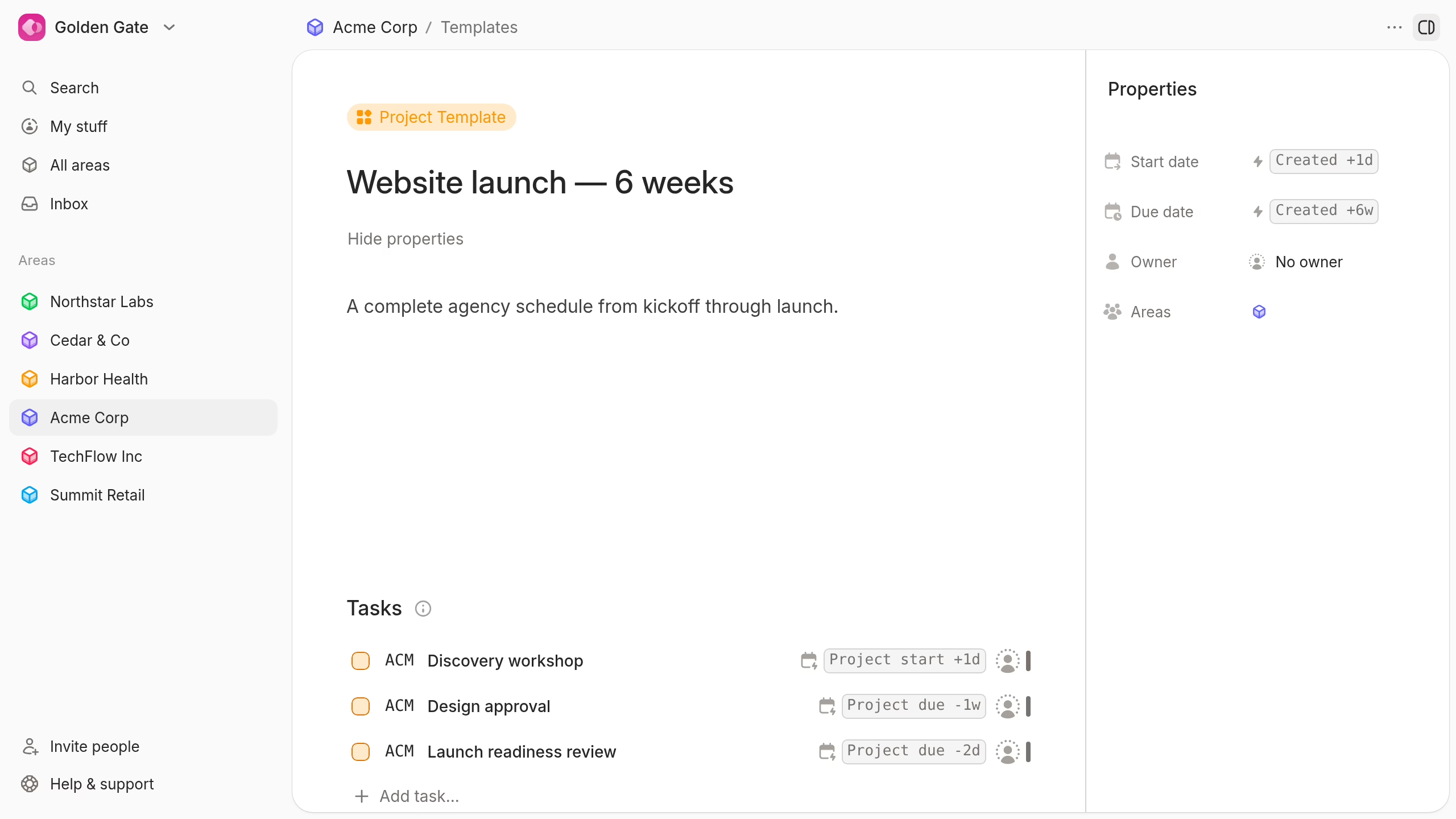
When someone creates the project, Plot calculates the complete schedule. The next project uses the same sequence with dates based on its own creation date.
Check the result before wider use
Open the template menu and select New project from template. Review the new project's start date, due date, and task due dates.
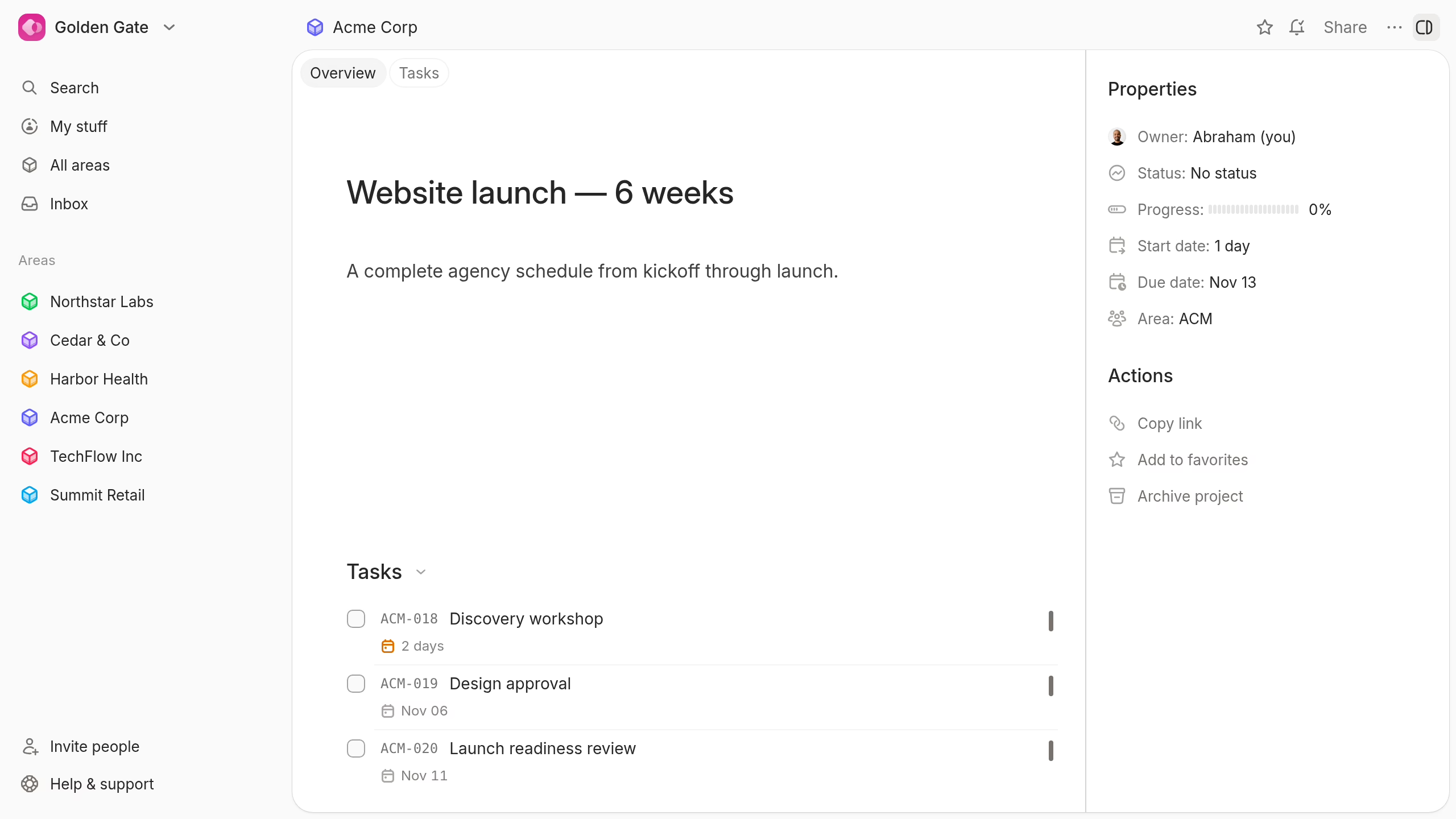
Test these boundaries before your team adopts the template:
- A task near the project start.
- A task before the final due date.
- A task after project creation.
- A project with a different creation day than your first test.
Edit the template when the sequence changes. New projects use the new schedule, while existing projects keep their current dates.