
Roles and permissions
Compare workspace roles with area roles and manage each type of access.
Workspace roles and area roles solve different access problems. A person has one workspace role and can have a different role in each area.
Manage workspace members
Open Settings, then select People under Workspace. The Members tab shows each person's workspace role and area access.
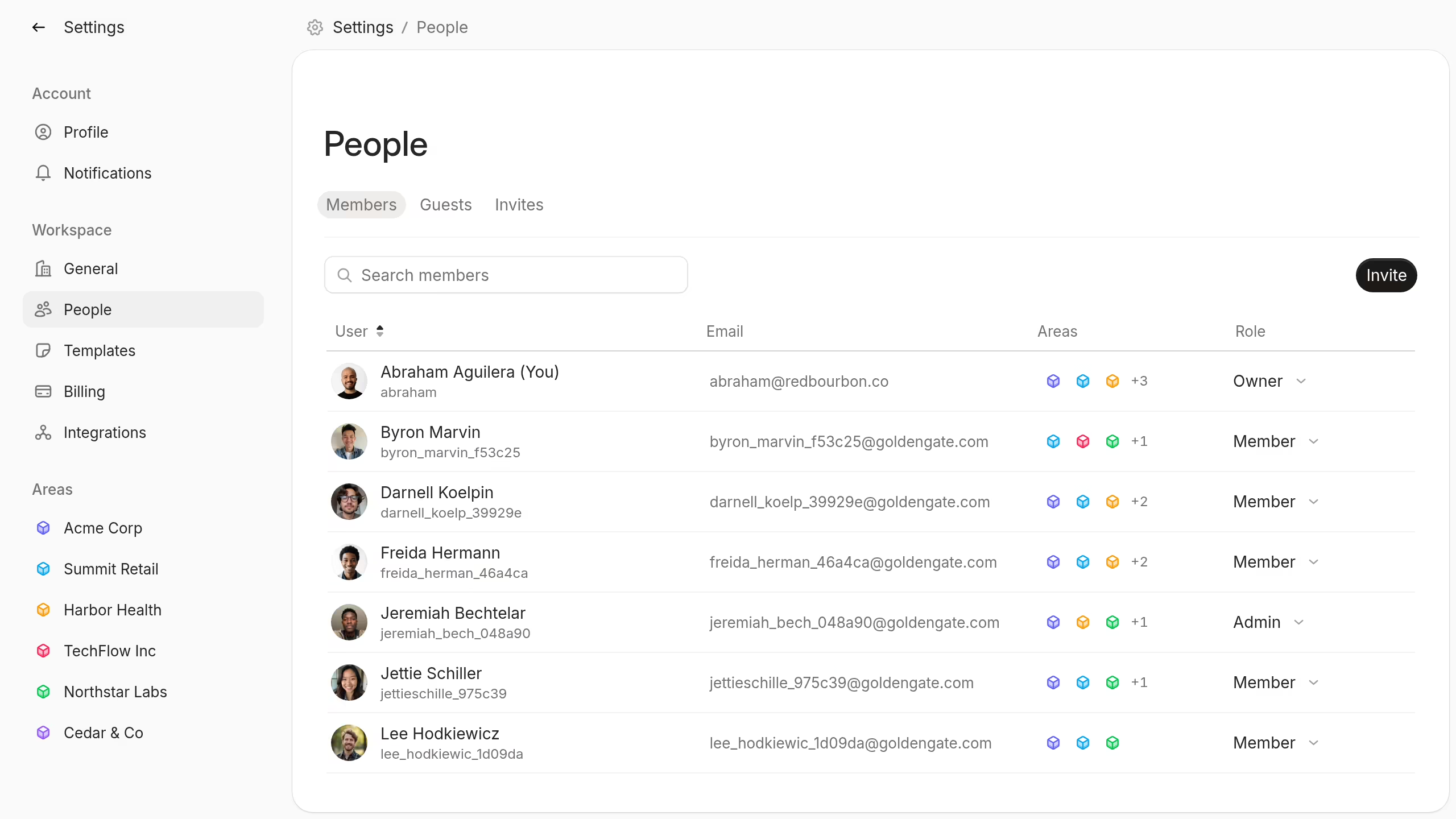
Workspace roles provide these permissions:
- Owner: Can perform all workspace actions, including billing and workspace deletion.
- Admin: Can manage work and settings, but cannot manage billing or delete the workspace.
- Member: Can create and update work, write posts, and invite people.
- Guest: Can only read the areas or items shared with them.
Workspace owners and admins can change member roles. Only an owner can grant the Owner role.
Manage area members
Open Area options, select Settings, then open Members. You can also select Add members from the area menu.
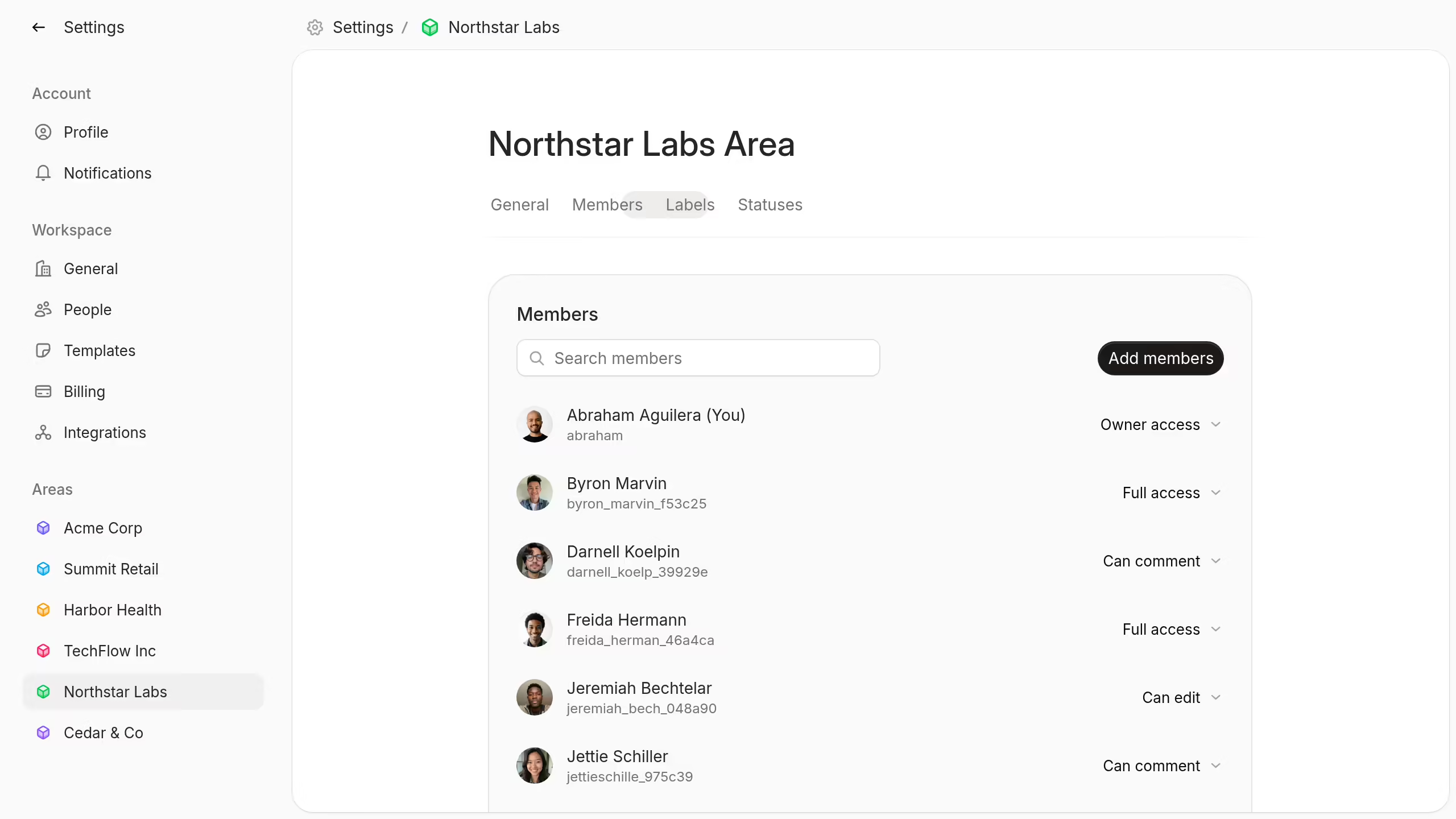
Add existing workspace members or invite people by email. Choose the role that new members receive.
The Add members dialog can also create an area invite link. A person who uses this link joins the workspace as a Member with Full access to the area.
Area roles provide these permissions:
- Owner access: Can edit, post, share, change settings, and delete.
- Full access: Can edit, post, share, and change area settings.
- Can edit: Can edit and post, but cannot share or change settings.
- Can comment: Can view and post comments, but cannot edit.
- Can view: Can only view.
Area owners can grant Owner access and remove another owner. A member with sharing permission cannot grant or remove Owner access.
Use the role control beside a person to change their role or remove them from the area.
An area must keep at least one owner. Add another owner before the only owner leaves.