
Repeating tasks
Repeat tasks after completion or on a schedule, and manage future occurrences.
Create a repeating task
- Open the task.
- Select Repeat.
- Choose After done or Regularly.
- Set the interval and schedule details.
- Review the summary, then save the schedule.
Repeat after completion
Use After done when the next task depends on the completion date. Plot creates the next task after you complete the current task.
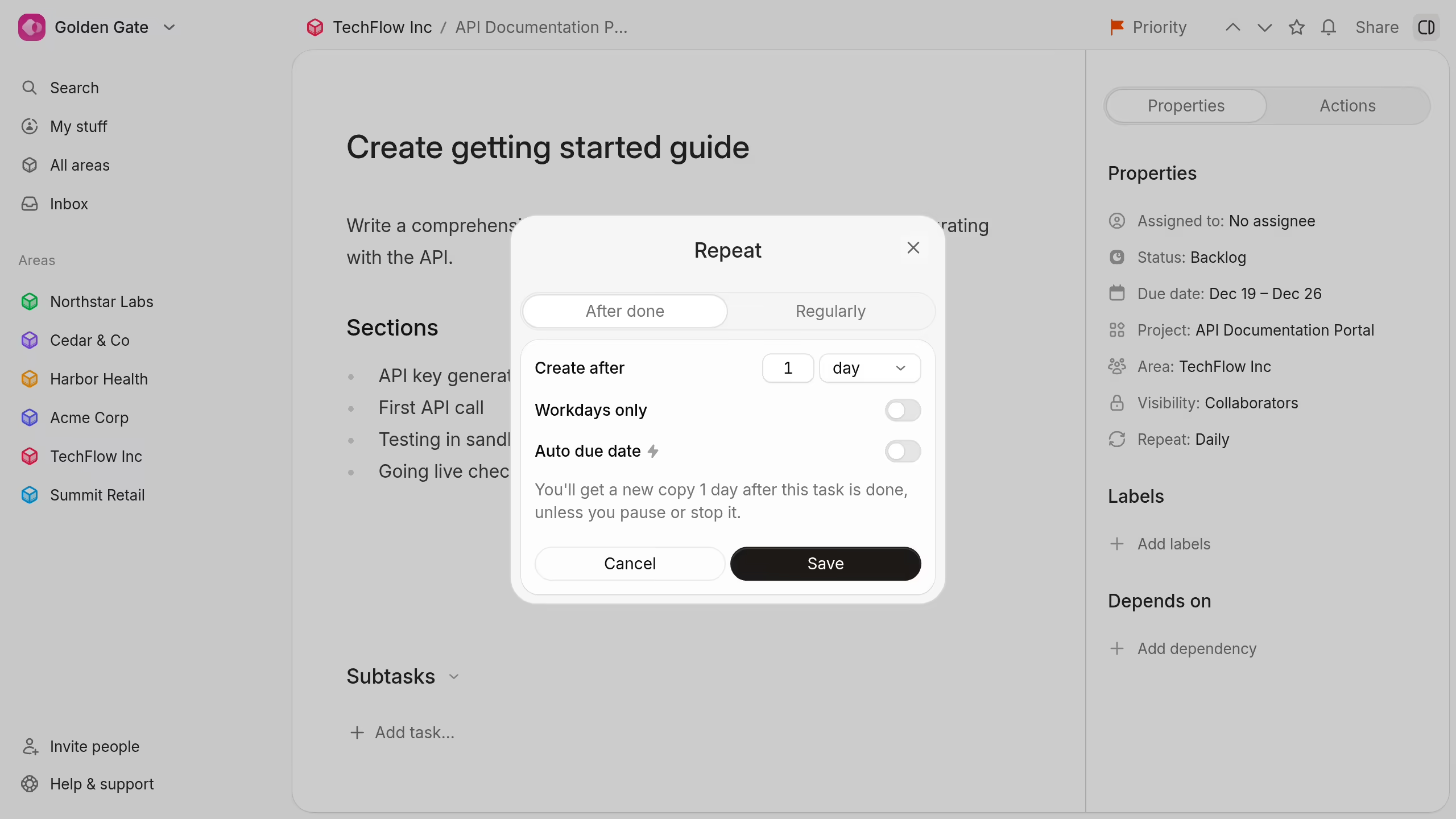
Choose an interval in days, weeks, months, or years. Turn on Workdays only to exclude weekends from the interval.
Repeat on a schedule
Use Regularly when the task follows a fixed calendar schedule.
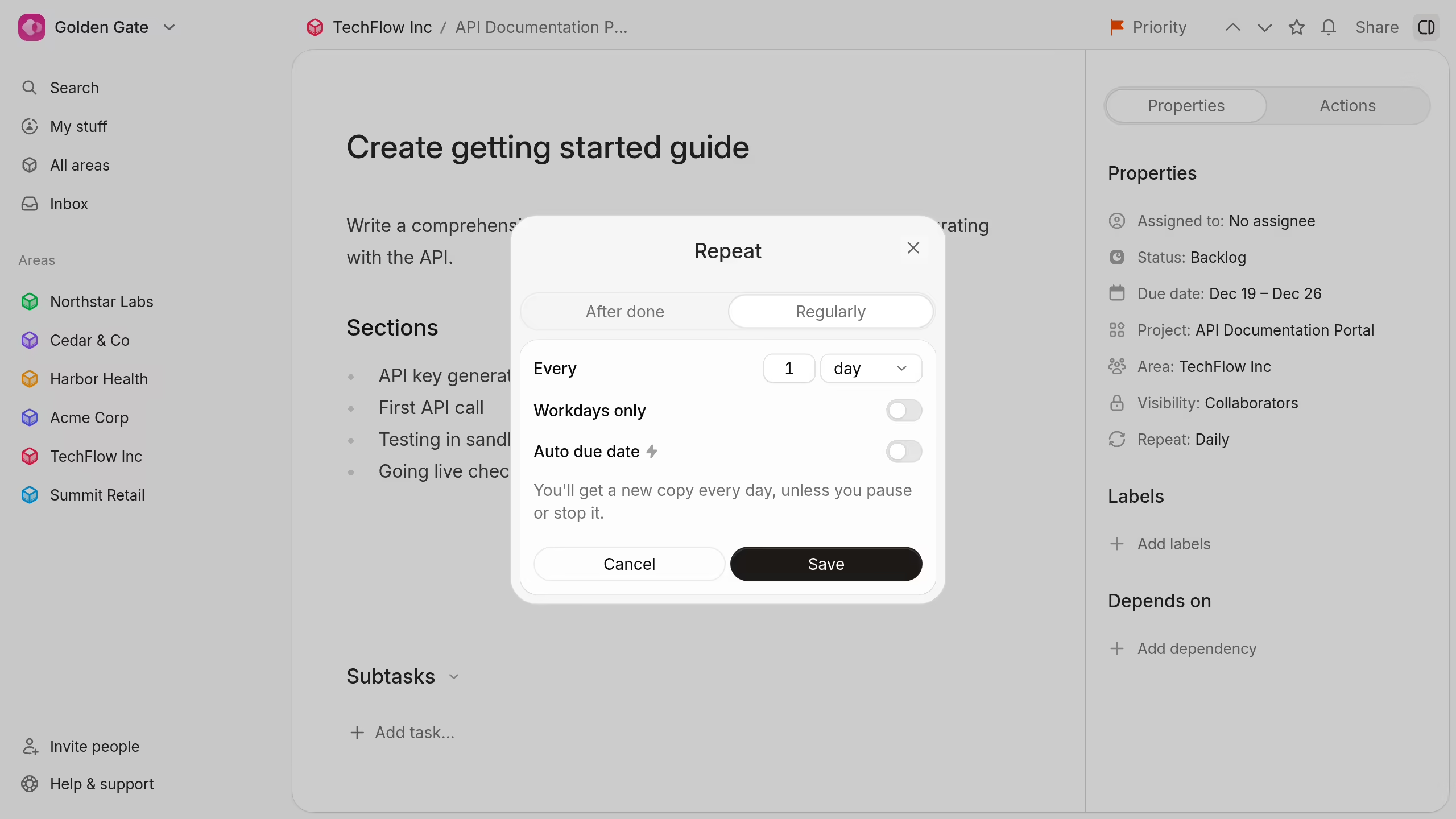
Choose an interval in days, weeks, months, or years. Weekly schedules include a weekday. Monthly schedules include a day of the month. Yearly schedules include a month and day.
Turn on Workdays only for daily, monthly, or yearly schedules that must avoid weekends.
Set due dates for new tasks
Turn on Auto due date to give each new task a due date. Set the number of days, weeks, months, or years after its creation date.
Manage a repeat schedule
Open Repeat to review the schedule and its next occurrence.
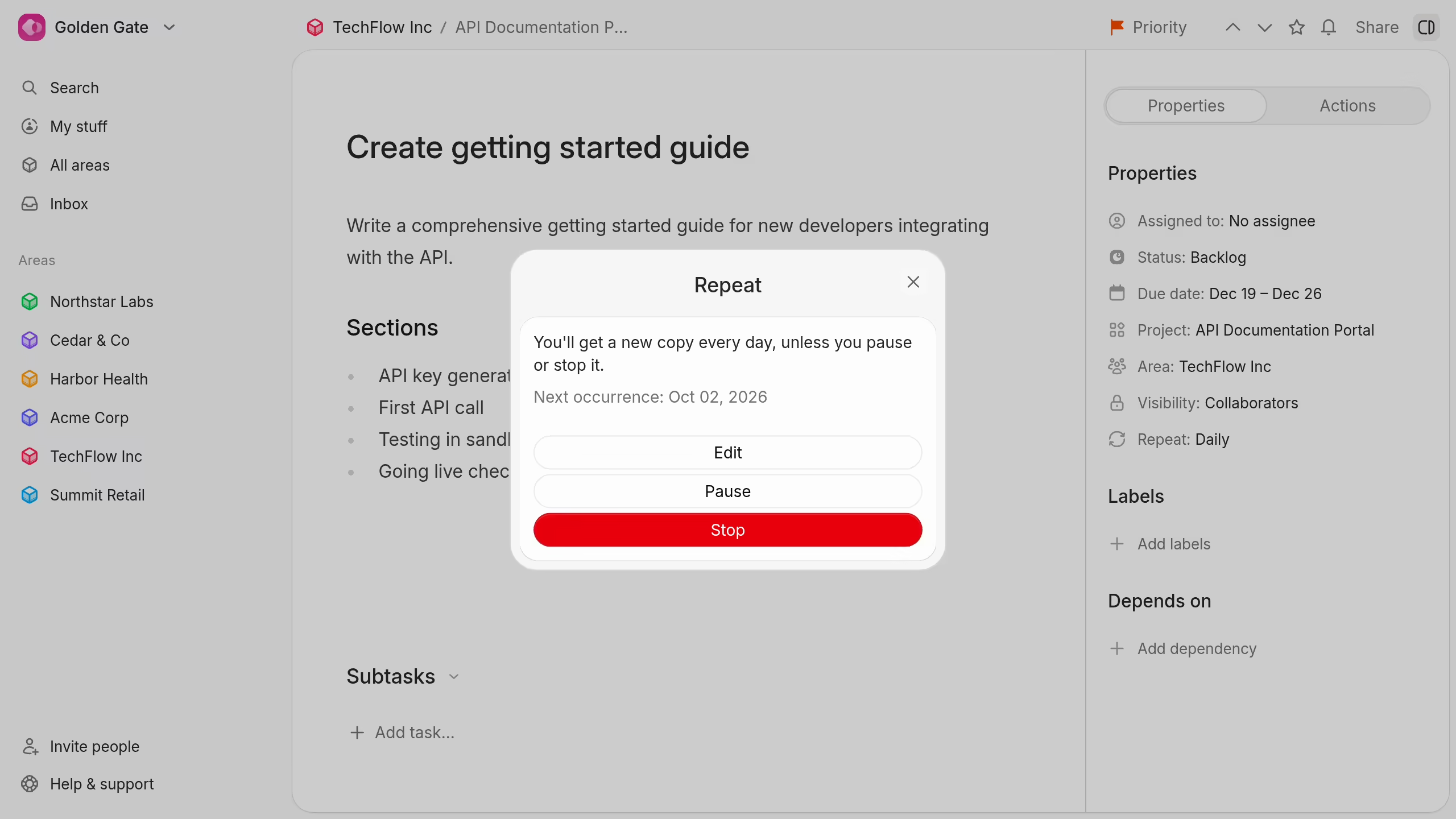
- Select Edit to change the schedule.
- Select Pause to stop new tasks without deleting the schedule.
- Select Resume to continue a paused schedule.
- Select Stop to remove the repeat schedule.
Stopping a schedule does not delete tasks that Plot already created.