My stuff
Find your assigned tasks, created work, owned projects, and created documents.
My stuff gives you one place for the work that has a direct connection to you. Open it from the main navigation.
Use the four tabs
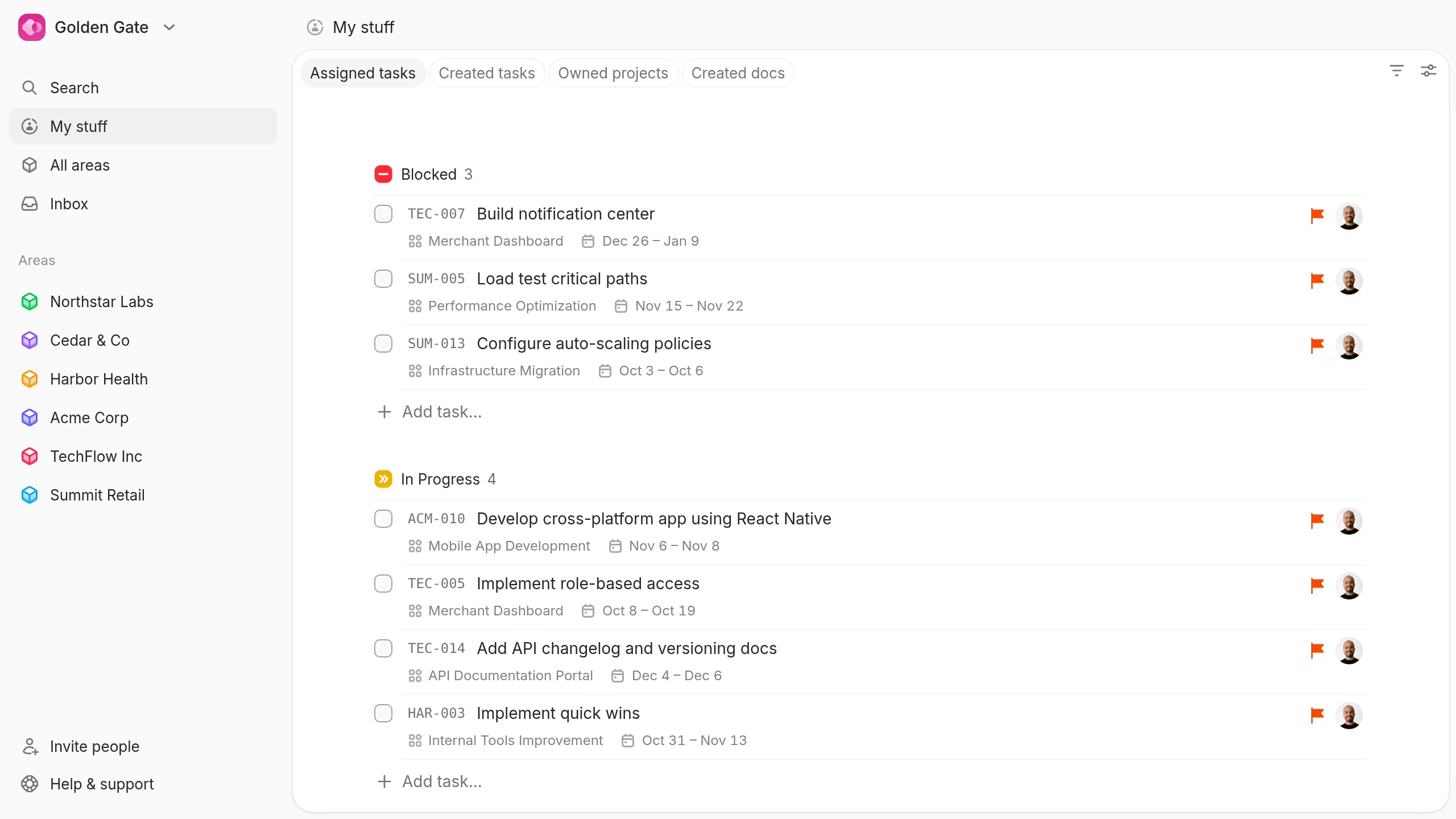
Assigned tasks shows tasks assigned to you across all areas. Created tasks shows tasks that you created, including tasks assigned to other people.
Owned projects shows projects where you are the owner. Created docs shows documents that you created.
Plot remembers your last open tab. The next visit to My stuff opens that tab. Opening the general tasks route opens Created tasks only when that was your last task tab. Otherwise, it opens Assigned tasks.
Review tasks
The task tabs use the standard task view. Use Filter to narrow the tasks by status, assignee, project, due date, labels, or priority.
Use View settings to change the layout, sort order, grouping, visible properties, and completed task range. Your task view settings do not change another person's view.
Both task tabs show the project and area properties. These properties help you understand tasks from several areas in one view.
Create a task
Create tasks from either task tab. Plot puts the new task in your default area. If you do not have a default area, Plot uses your first available area.
A task from Assigned tasks is assigned to you. A task from Created tasks has no automatic assignee. New tasks use the default not-started status and collaborator visibility.
If you do not belong to an area, Plot opens Areas instead. Join or create an area before you create tasks from My stuff.
Find projects and documents
Use the project table tools in Owned projects to find and review your projects. Use document search in Created docs when the document grid offers search.
These tabs only include projects you own and documents you created. Use an area's Projects or Docs tab to find other accessible work.
Understand empty states
Owned projects shows “Projects you own will appear here” when no project has you as its owner. Created docs shows “Docs you create will appear here” when you have not created a document.
An empty task tab means that no accessible task matches the tab and its current filters. Clear filters or open another tab to check other work.
Guests without area membership cannot use these tabs. Plot opens the first shared project or task instead. If no shared work exists, Plot opens the shared work empty state.