
Templates
Build reusable task templates and create consistent tasks from them.
Create and manage task templates
- Open the area's Area options menu.
- Select Templates.
- Open the Tasks tab.
- Select Add new.
- Add the template title, description, properties, and subtasks.
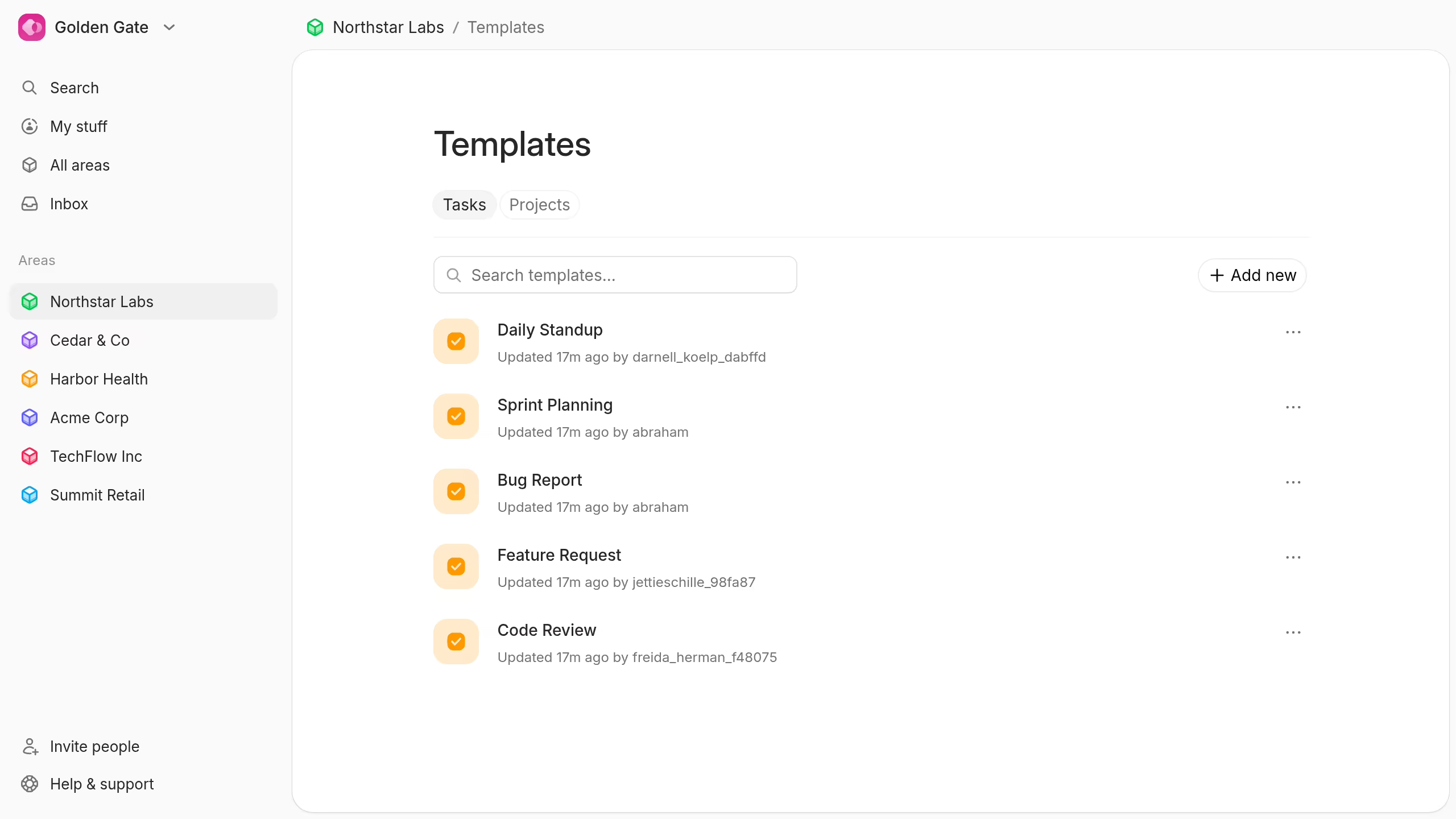
Templates can include an assignee, status, dates, visibility, labels, and subtasks.
Use the template menu to edit, duplicate, or delete a template. Drag templates to change their order.
Create a task from a template
Open a task template and select New task from template.
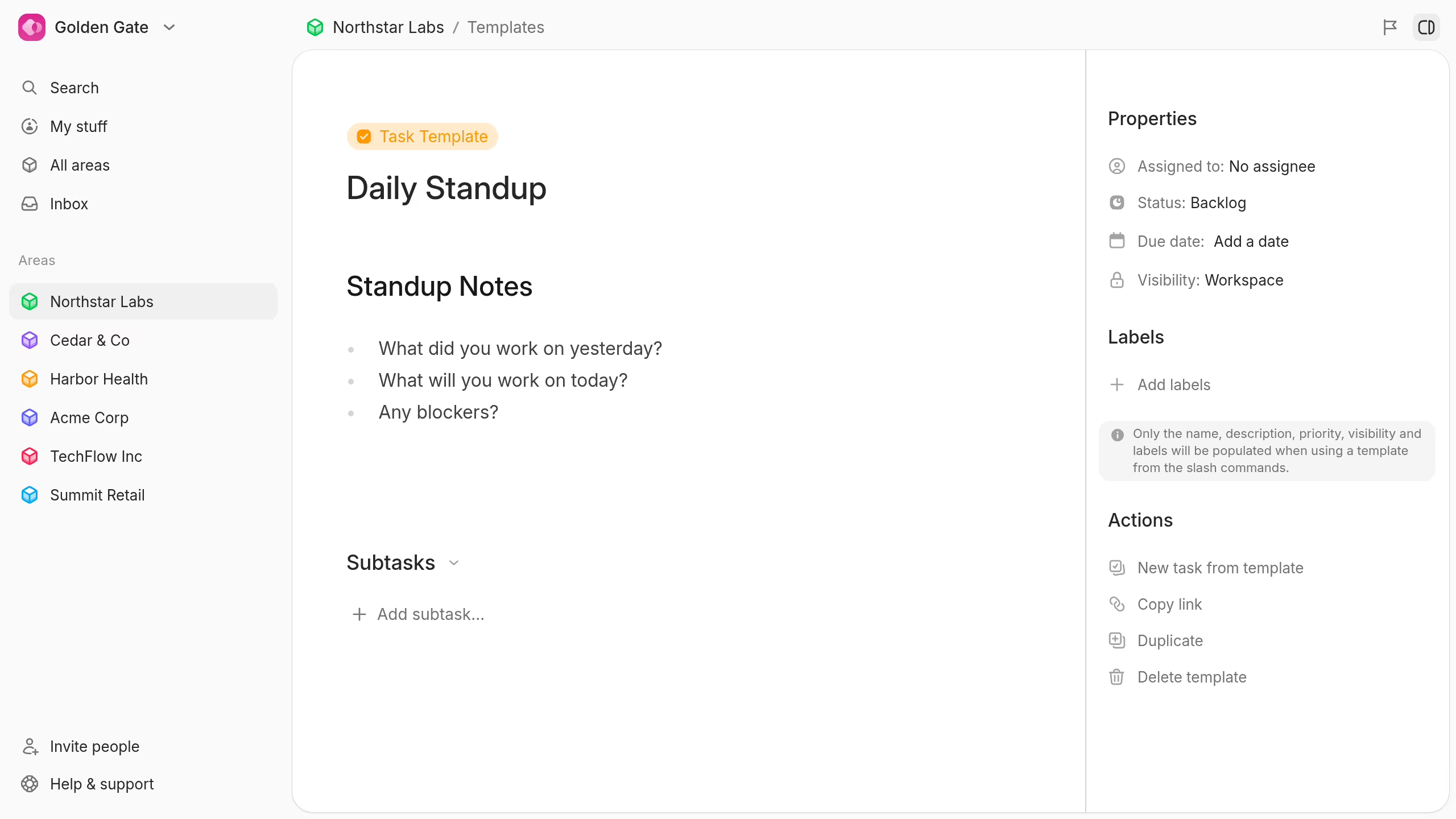
You can also start typing a template's name in a new task row. Select the suggested template to apply it.
Plot creates a normal task from the template. You can change any copied value without changing the template.
Use a workspace template when the same task pattern must work in several areas.
Read the relative dates guide when a task belongs to a reusable project schedule.