
Task and document visibility
Control the broad audience for a task or document, including guest access.
Visibility controls the broad audience for one task or document. Direct sharing then adds specific collaborators where the visibility rule permits access.
Choose a visibility level
- Private: Only the creator can see the item. Only the creator can choose this option.
- Collaborators: A task uses area or project collaborators. A document uses area collaborators.
- Hidden: People with normal access can see the item, but guests cannot.
- Workspace: All workspace members can see the item.
Guests cannot select Hidden. Hidden tasks and documents remain unavailable to guests, including guests with other access to the parent area.
Change task visibility
Open the task. Under Properties, select Visibility, then choose an option.
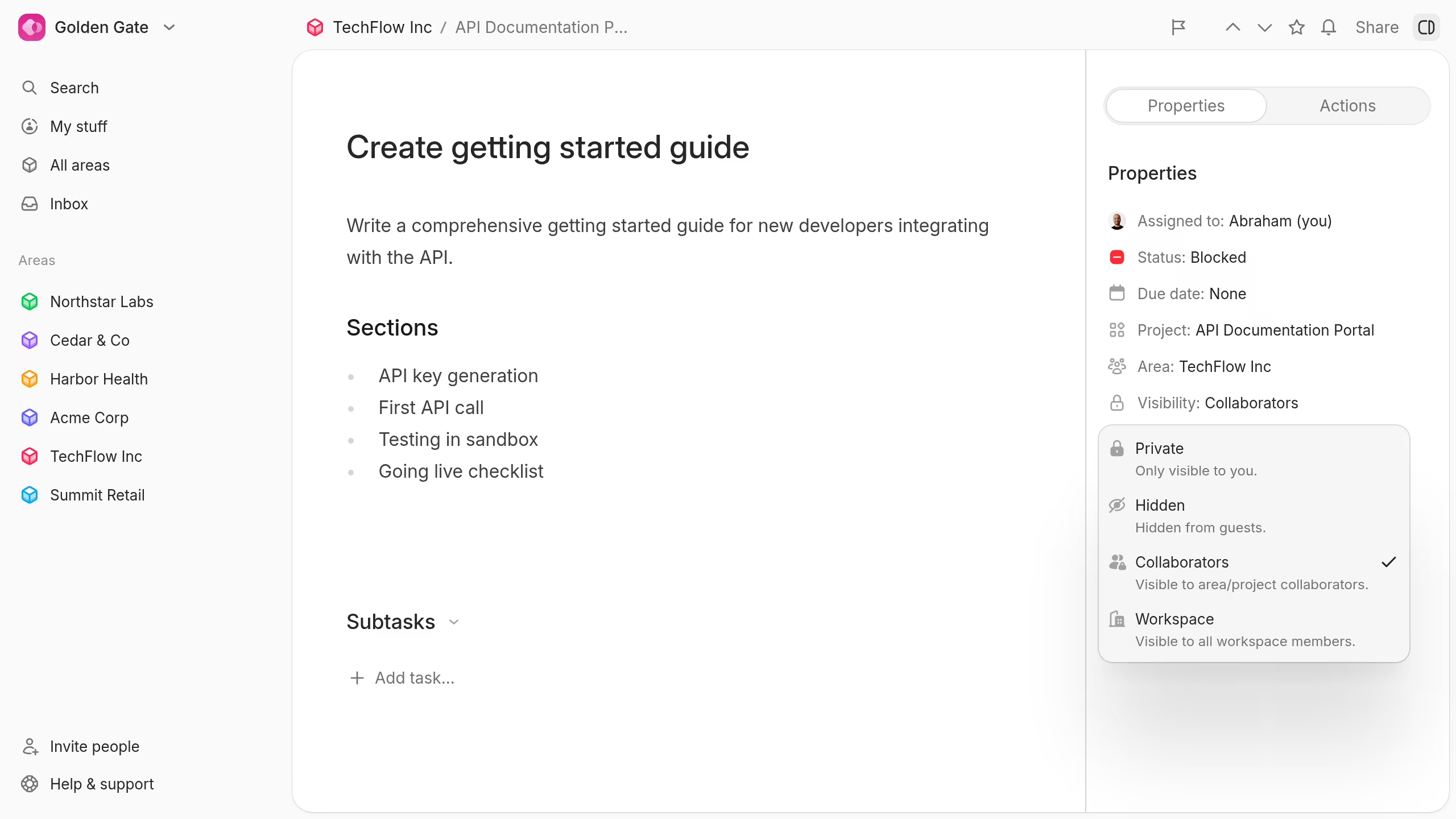
Select Share to add direct collaborators or copy the task link.
Change document visibility
Open the document menu, select Visibility, then choose an option.
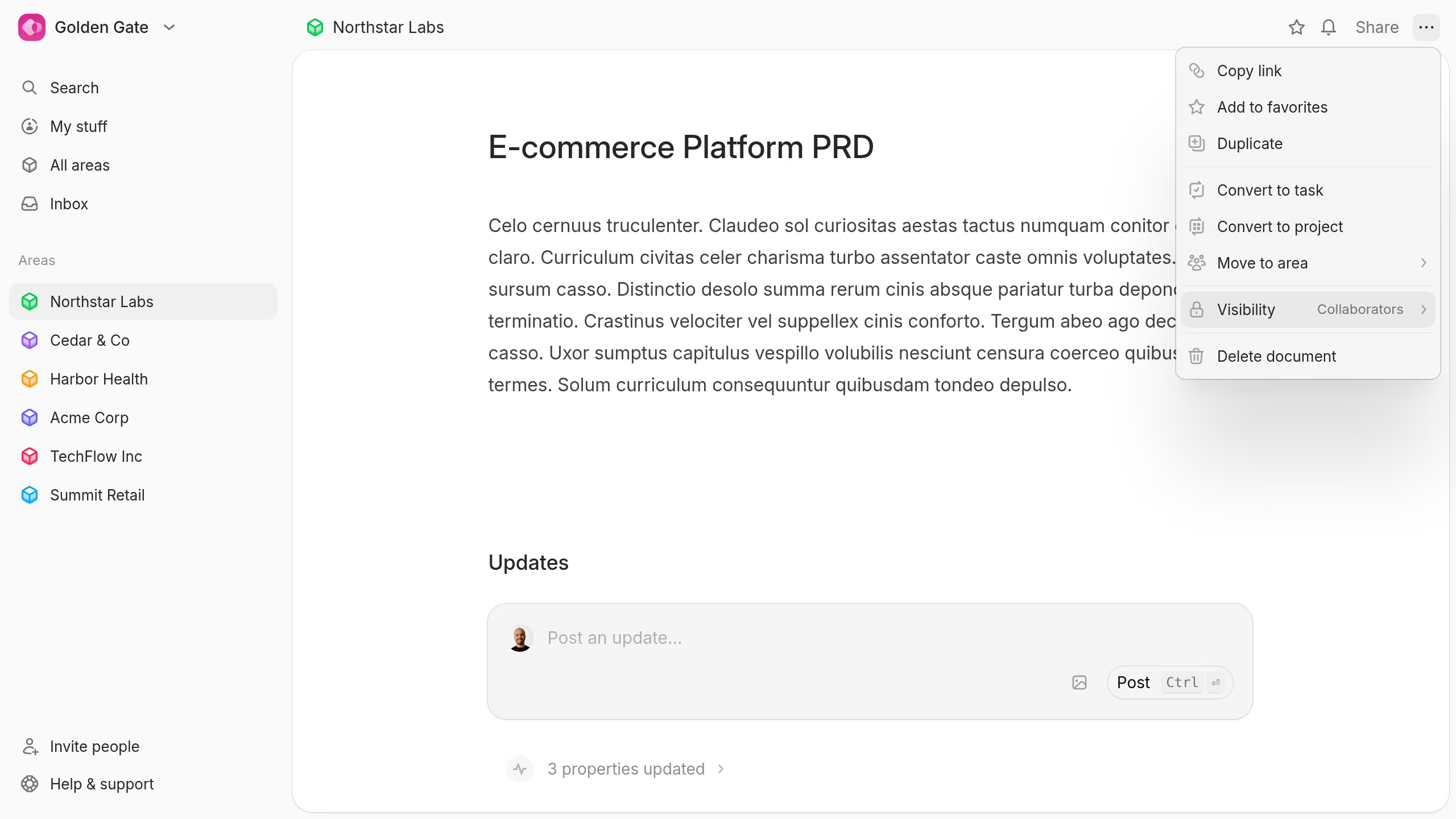
Select Share to add direct collaborators or copy the document link.
You need settings permission for the task or document before you can change its visibility.