
Connect apps
Let Plot read and act in your other apps, for the workspace or for a single area.
Connect an app, and Plot can use it in any thread. For example, Plot can pull numbers from PostHog, draft a campaign in Klaviyo, or read a Notion page.
Connectors belong to you. Everyone in the workspace signs in with their own account, and Plot uses your connectors in threads you start.
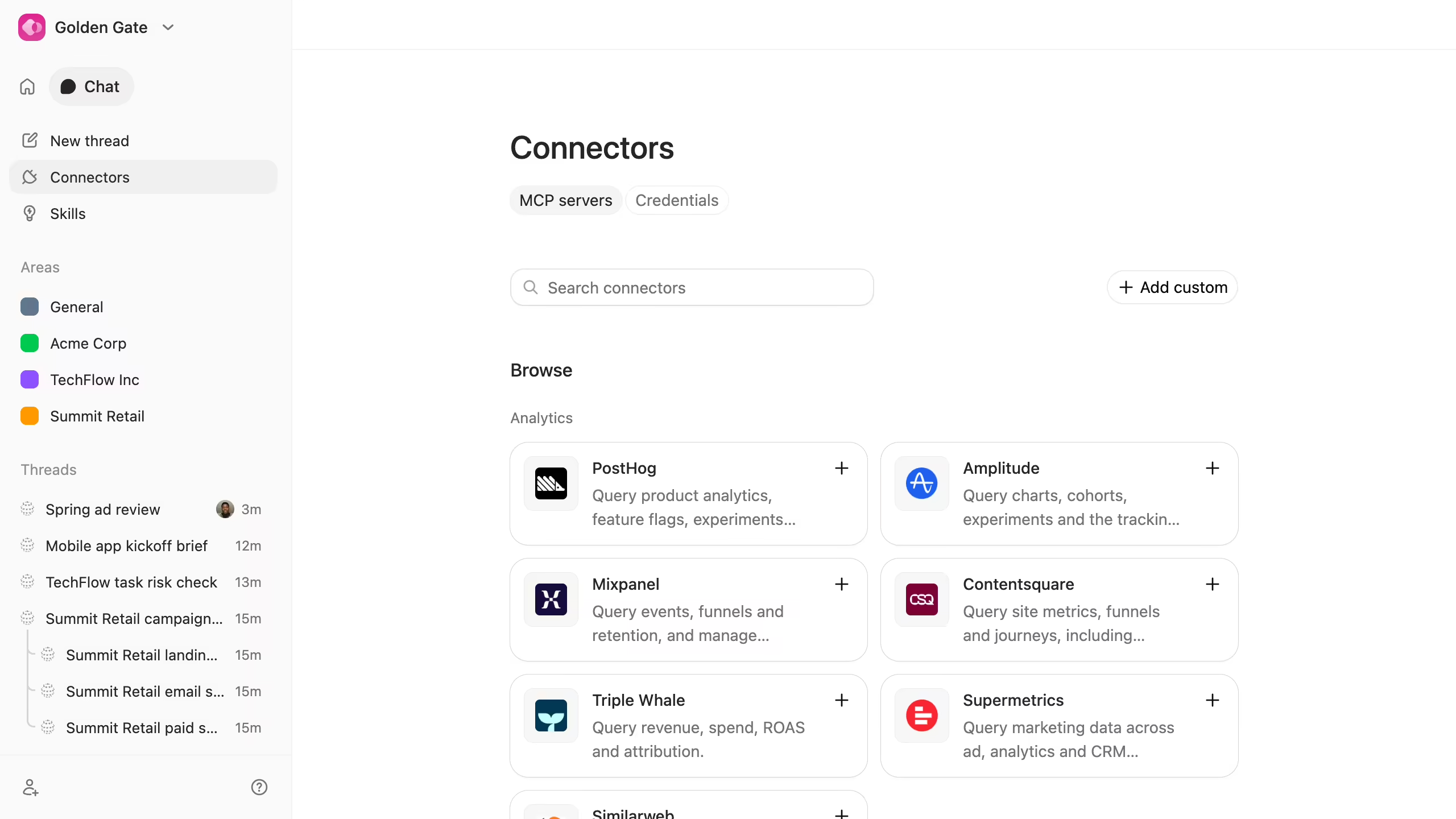
Connect an app
- Select Connectors in the Chat sidebar.
- Find the app under Browse, or search for it.
- Select + on the app's card and sign in.
The app moves to Enabled. To connect an app that is not in the list, select Add custom and enter its server URL.
You can also connect from a thread. When Plot needs an app you have not connected, it shows a card with Connect. Plot carries on once you sign in.
Choose what Plot can do
Select Manage on a connected app. The dialog lists the app's tools under Reads data and Changes data. Set every tool to one of these:
- Allow: Plot uses it without asking.
- Ask: Plot asks you in the thread first.
- Off: Plot cannot use it.
Connect an account for a single area
Give an area its own account for an app when that area's work lives in a different account from the rest of the workspace. An agency can connect every client's own account to that client's area. Plot then uses the right account in every thread, so nobody has to sign out and back in to switch clients.
For example, your workspace connects your agency's PostHog, and the Acme Corp area connects Acme's PostHog. When you ask "How did signups do last week?" in an Acme Corp thread, Plot reads Acme's numbers. In any other thread, Plot reads your agency's numbers, so the two accounts stay apart.
Plot uses the area's account only for that app. For other apps, area threads still use the workspace's connectors.
- Select the area in the Chat sidebar.
- Open the Connectors tab.
- Select Add connector and sign in.
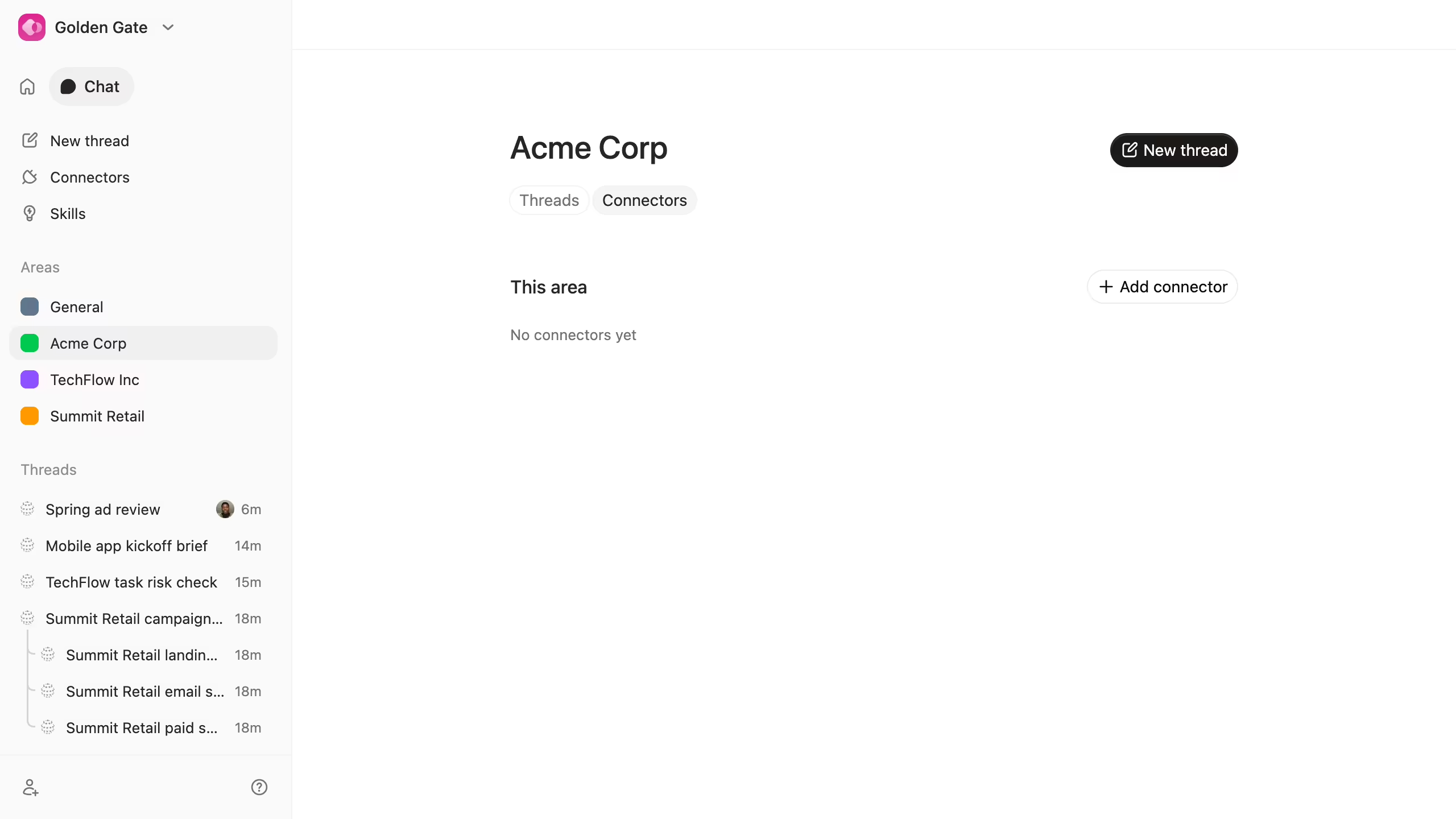
From the workspace lists the connectors the area inherits. Select Use another account on one to give the area its own.
When Plot asks you to connect an app in an area thread, you choose whether to add it to the area or to the workspace.
Sign in again
When an app's sign-in expires, an alert appears above the message box: App is disconnected, please sign in. Select Sign in to reconnect, and Plot continues. Select the dismiss icon to let Plot carry on without the app.
Save credentials
Some tools sign in with a key or a password instead. When Plot needs one, it asks you in the thread to save it. Plot uses a saved credential only with the sites it belongs to, and never sees its value. Find and remove saved credentials on the Credentials tab of the Connectors page.