
Chat with your team
Work with teammates and Plot in one thread, chat without Plot, and share threads by link.
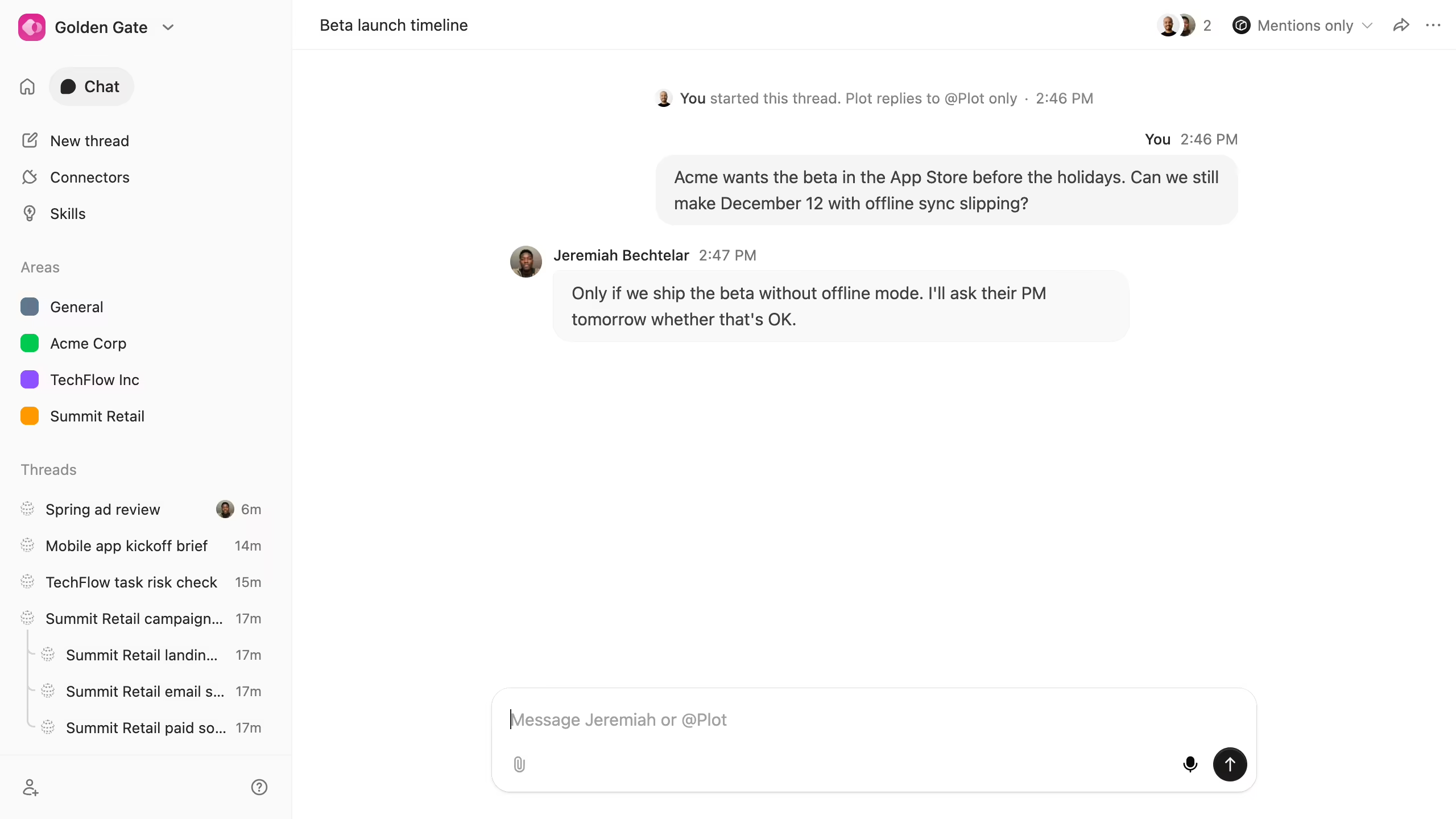
Any thread can hold several people and Plot. Everyone sees the same messages and files, and you choose when Plot joins in.
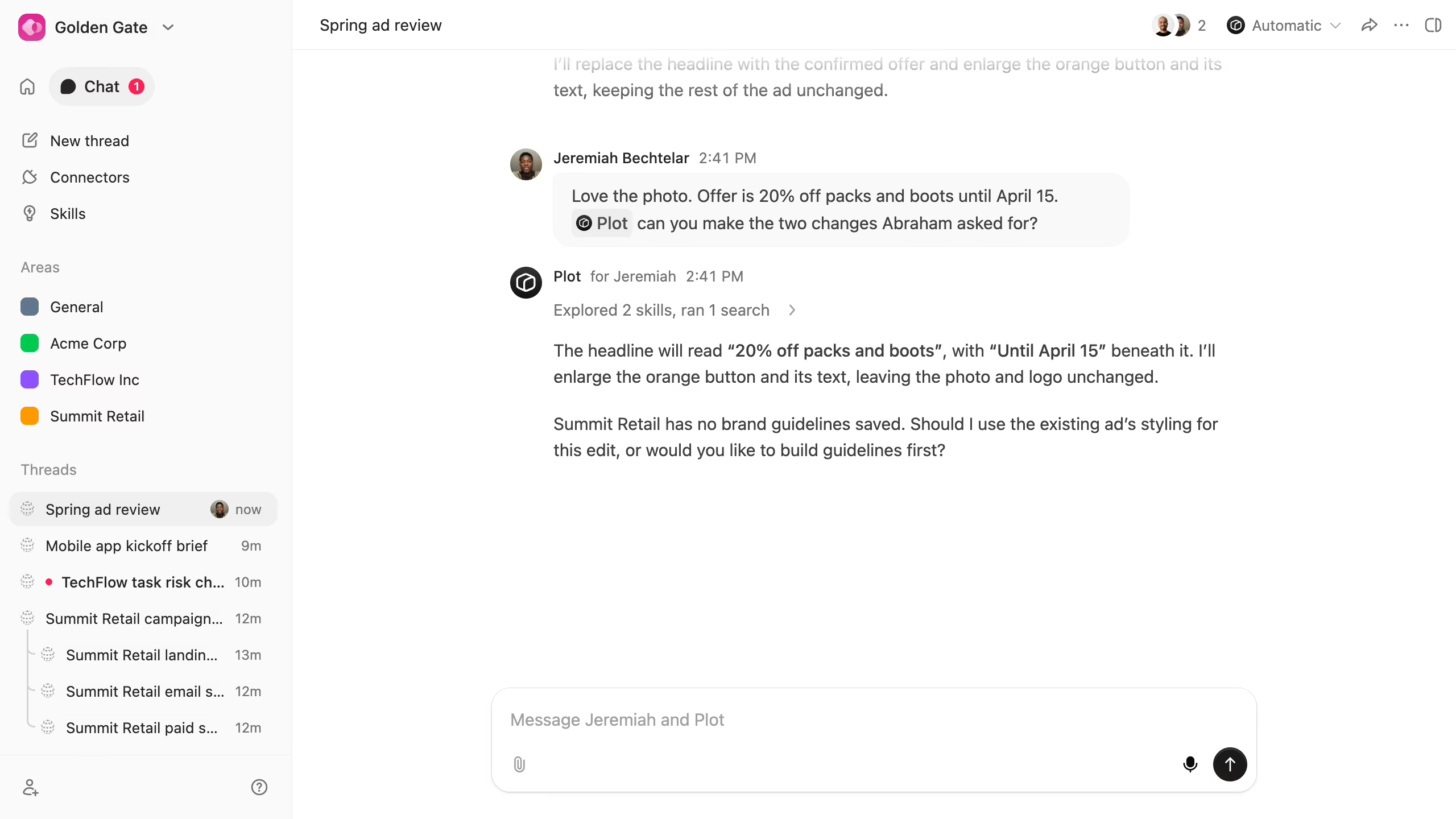
Add people
On a new thread, enter a name in the To field. In an open thread, select Add people at the top.
Everyone in a thread can add people, remove people, and change when Plot replies. To leave, open the people list and select Leave.
Choose when Plot replies
Open the menu next to Plot's name at the top of the thread.
| Setting | What Plot does |
|---|---|
| Automatic | Replies when a message asks Plot for something. |
| Mentions only | Replies only when someone writes @Plot. |
| Muted | Stays quiet. The thread is a chat between people. |
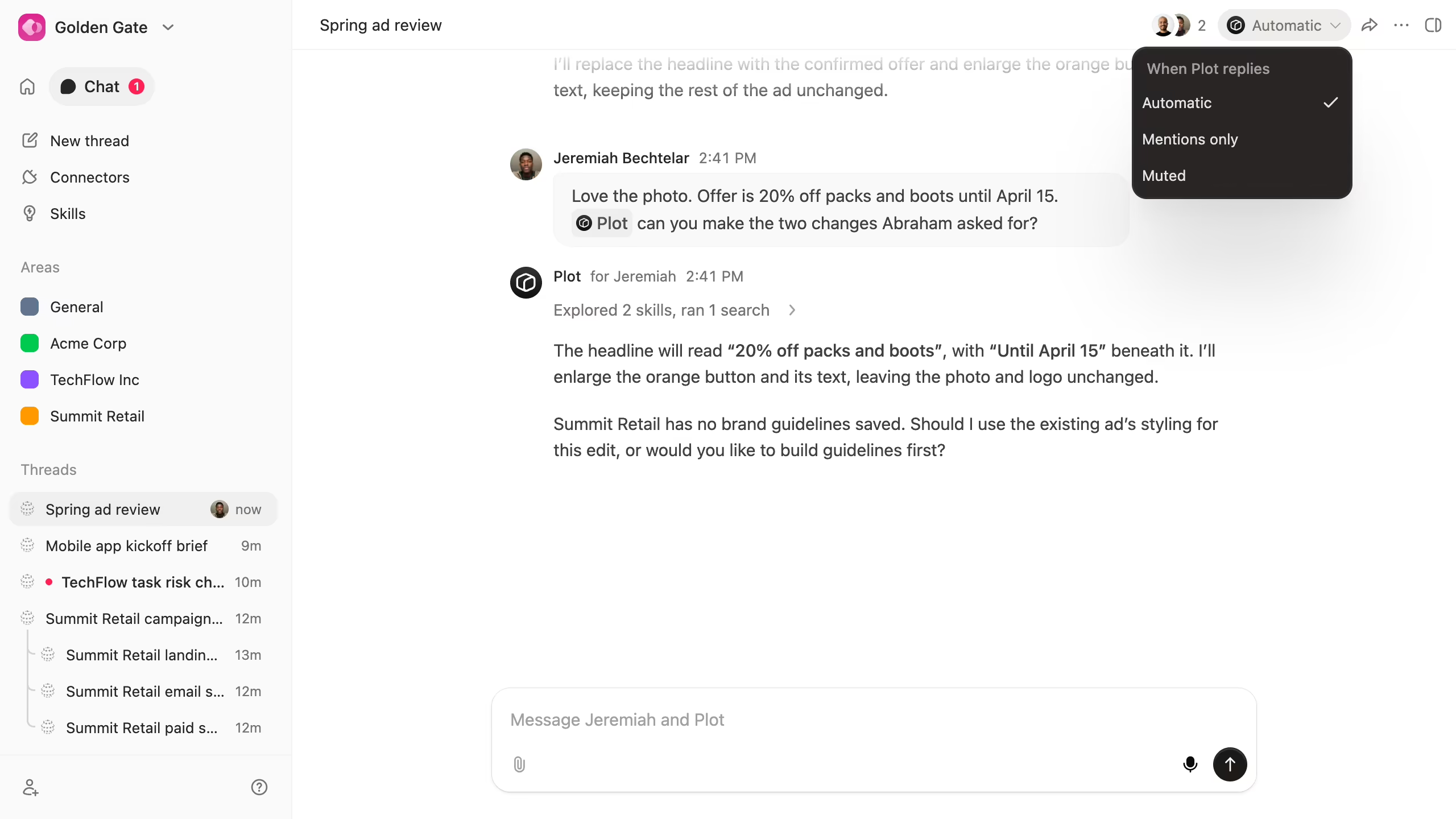
A thread with only you and Plot always gets a reply. Plot's replies in a shared thread say who they are for, such as for Jeremiah.
Chat without Plot
Set the thread to Muted to talk with teammates only. If you write @Plot
in a muted thread, Plot offers Unmute so you can ask it about that message.
Mention people and Plot
Enter @ to mention Plot, a teammate or a page from your workspace.
@Plotasks Plot to reply, unless the thread is muted.@a teammate to send them a notification. If they are not in the thread, you can choose Add to thread when you send.
You can also react to a teammate's message with an emoji.
Talk in an area
Every area has its own threads, which everyone in the area can see. Select the area in the Chat sidebar to see them, and select New thread to start one.
Area threads start on Mentions only, so the team can talk and call Plot in
with @Plot when they need it. When you send a message in an area thread you
are not in, you join it.
Share a thread by link
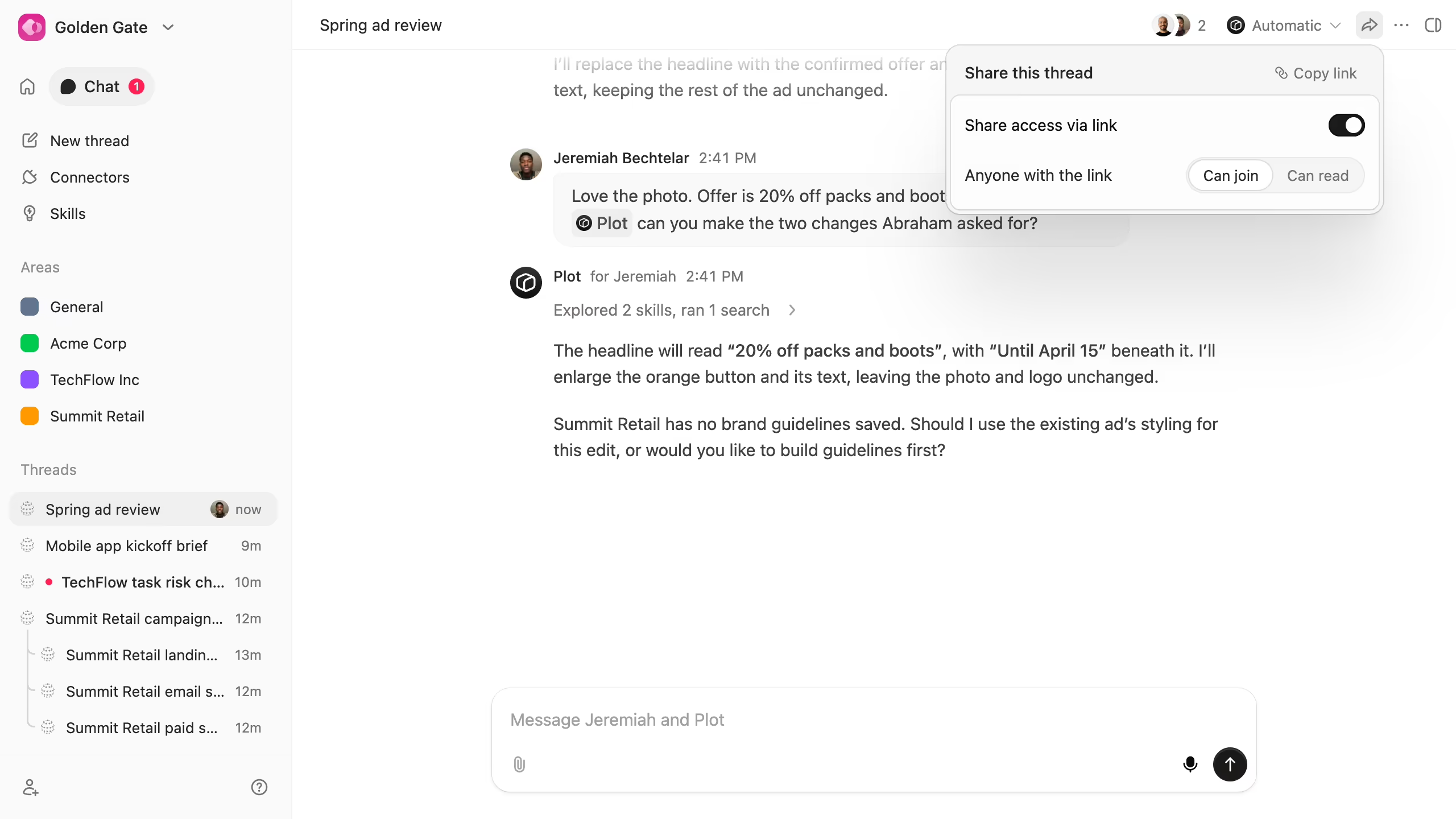
Select the share icon at the top of the thread, then Copy link. By default only people in the thread can open it.
To let anyone in your workspace open the link, turn on Share access via link and choose:
- Can join: people who open the link can read the thread and join it by writing.
- Can read: people who open the link can only read it.
Area threads have no link setting, because everyone in the area can open them.