
Chat with Plot
Start a thread, give Plot context, and steer its work while it runs.
Open Chat at the top of the sidebar and write what you need. Plot reads your workspace, does the work, and replies in the thread with links to what it made.
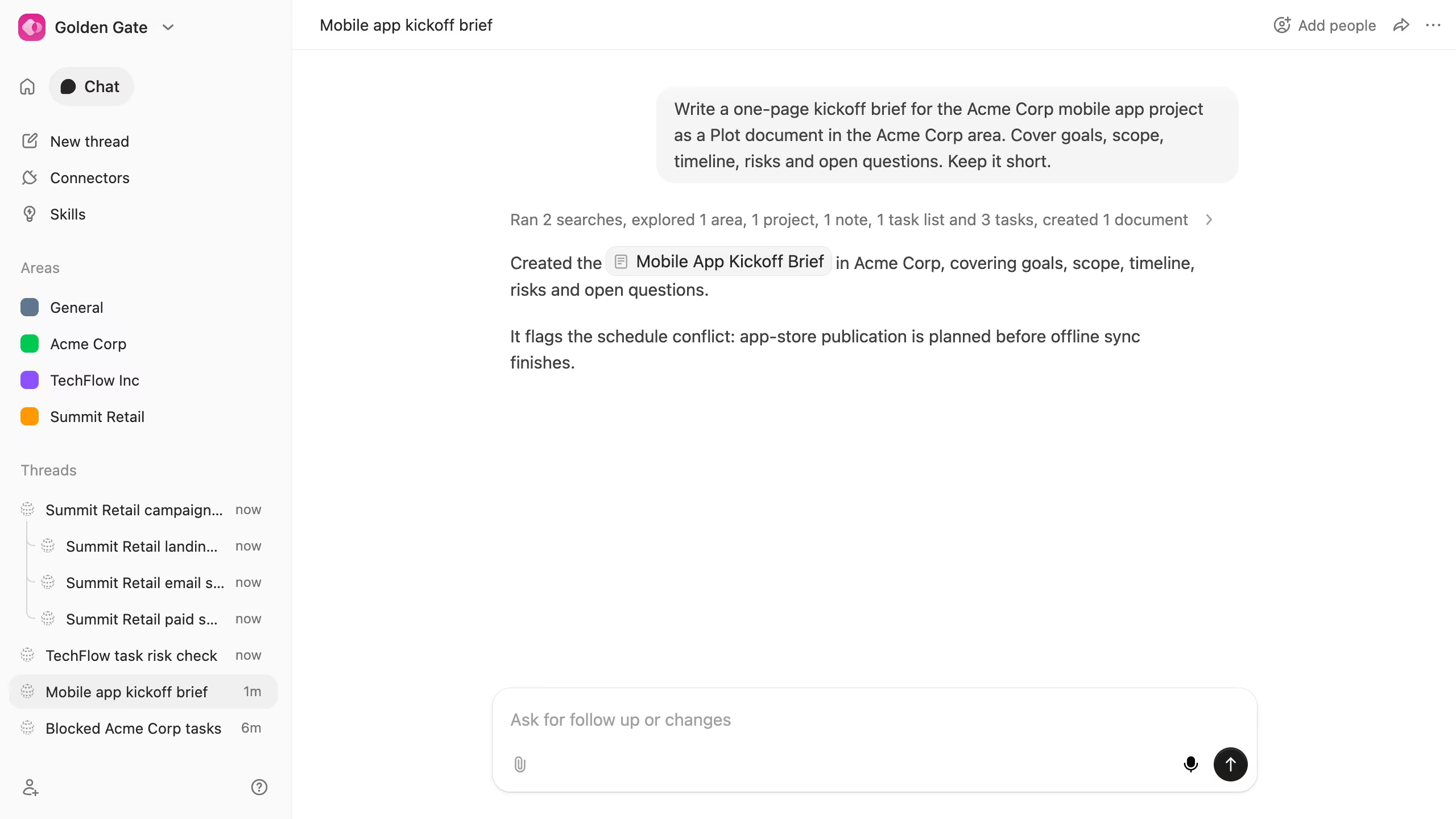
Start a thread
- Select New thread in the Chat sidebar.
- Select Ask Plot on any task, project or document. The new thread starts with a message that already mentions the page.
- Select an area in the Chat sidebar, then New thread, to start a thread that the whole area can see. See Chat with your team.
Plan and Chat both remember the last page you used, so switching back returns you there. A thread you left halfway up reopens at the same place.
Give Plot context
Enter @ in the message box to add work from your workspace, such as a task or
a document. Plot reads what you add before it starts.
To add files, drag them into the message box or select the paperclip. Plot can read images, PDFs and recordings.
To talk instead of writing, select the microphone.
Send and stop
Press Cmd+Enter (Ctrl+Enter on Windows and Linux) to send. Enter starts a
new line.
To stop a reply, select the stop button or press Esc twice.
Steer Plot while it works
You can send more messages while Plot works. They show dimmed until Plot reads them after its current step, so you can correct it without stopping the reply.
To change a message you already sent, hover it and select Edit. Plot replies again from that message.
Approve risky steps
Plot asks before it deletes anything or makes other changes that are hard to undo. Select Approve or Reject on the card in the thread.
When Plot needs an app or a sign-in, it shows a card that asks you to connect. See Connect apps.
Rate replies
Hover a reply and select the thumb to mark it as a Good response or a Bad response.